 Daily Office
Lesson 2 of 4 · About 3 minutes
Using the Voice’s Bar
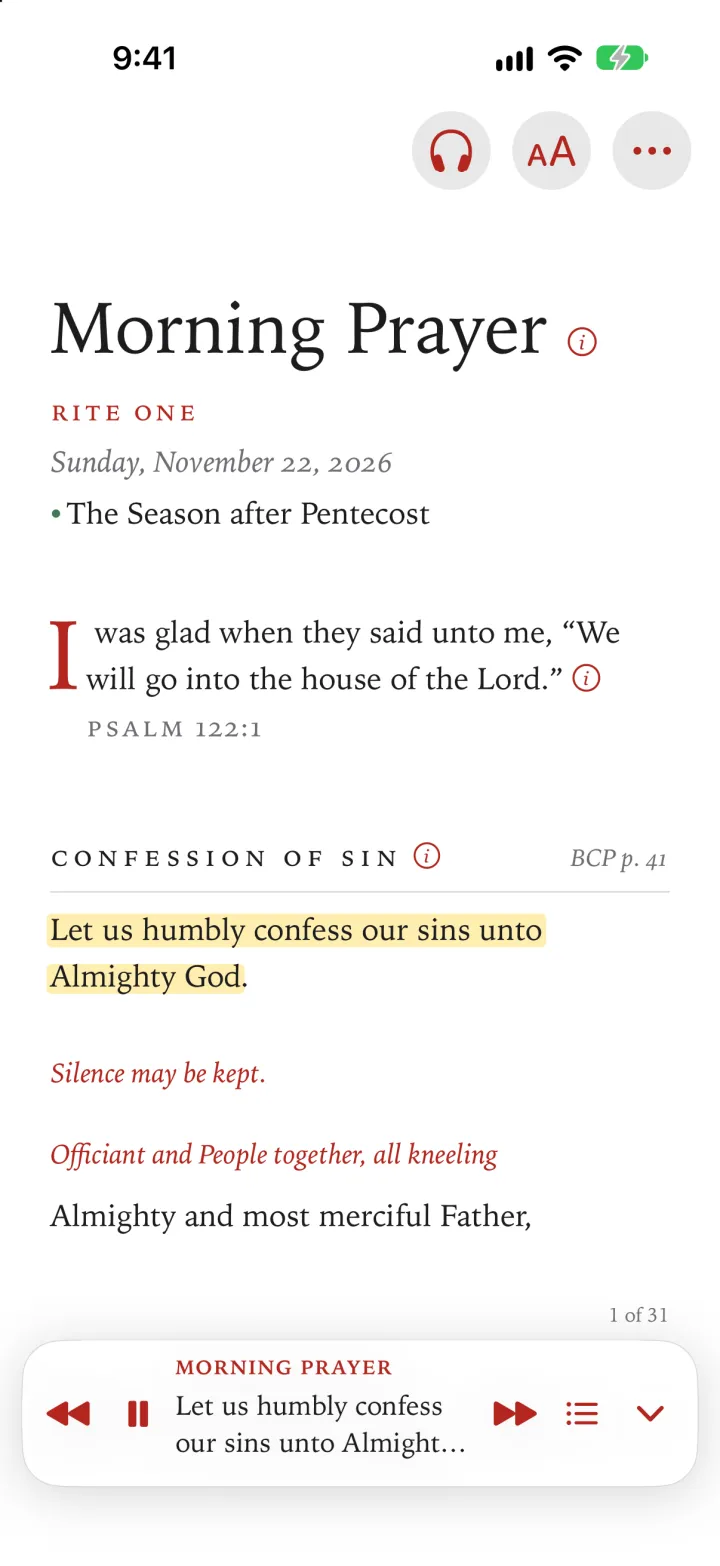
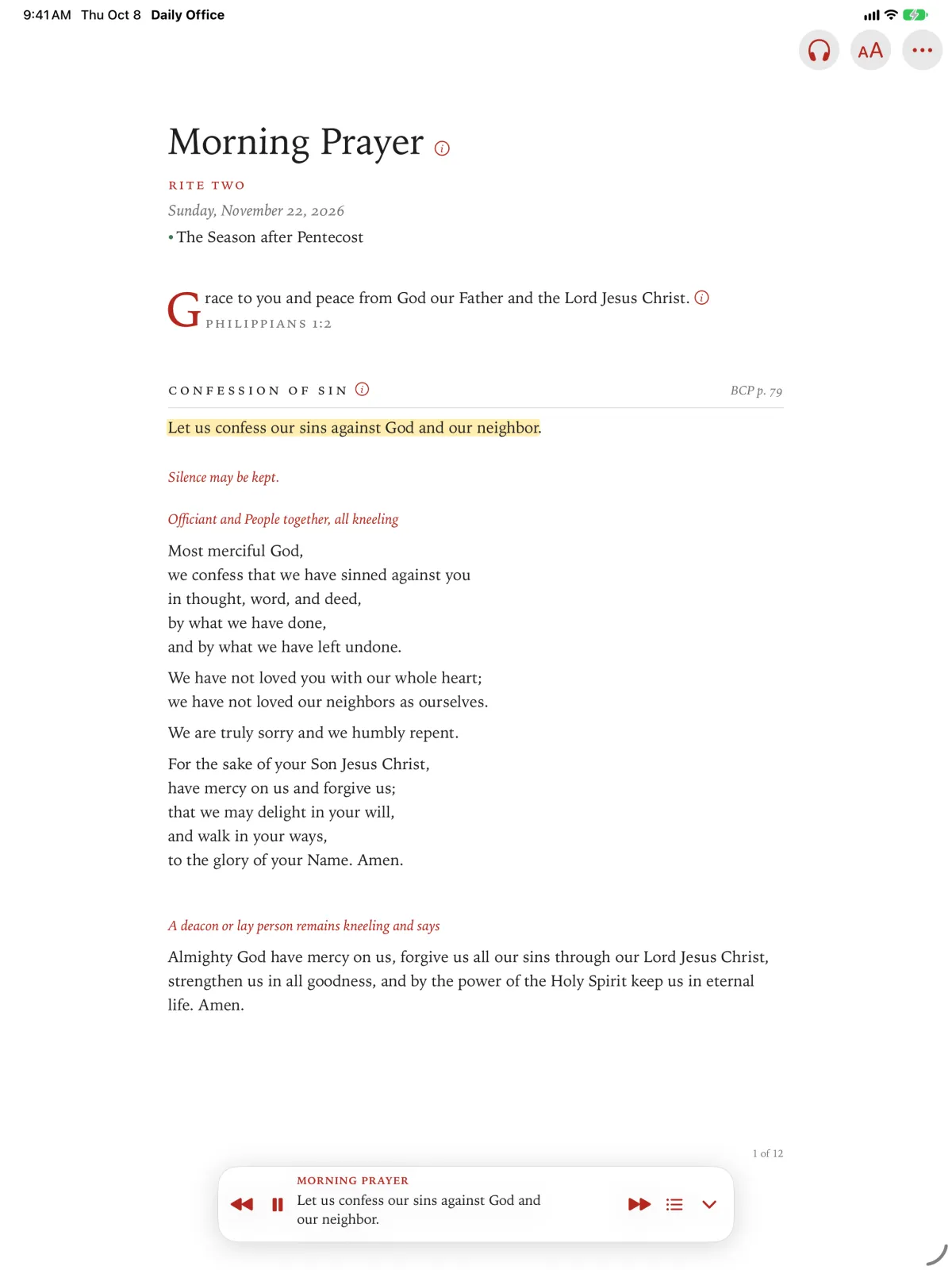
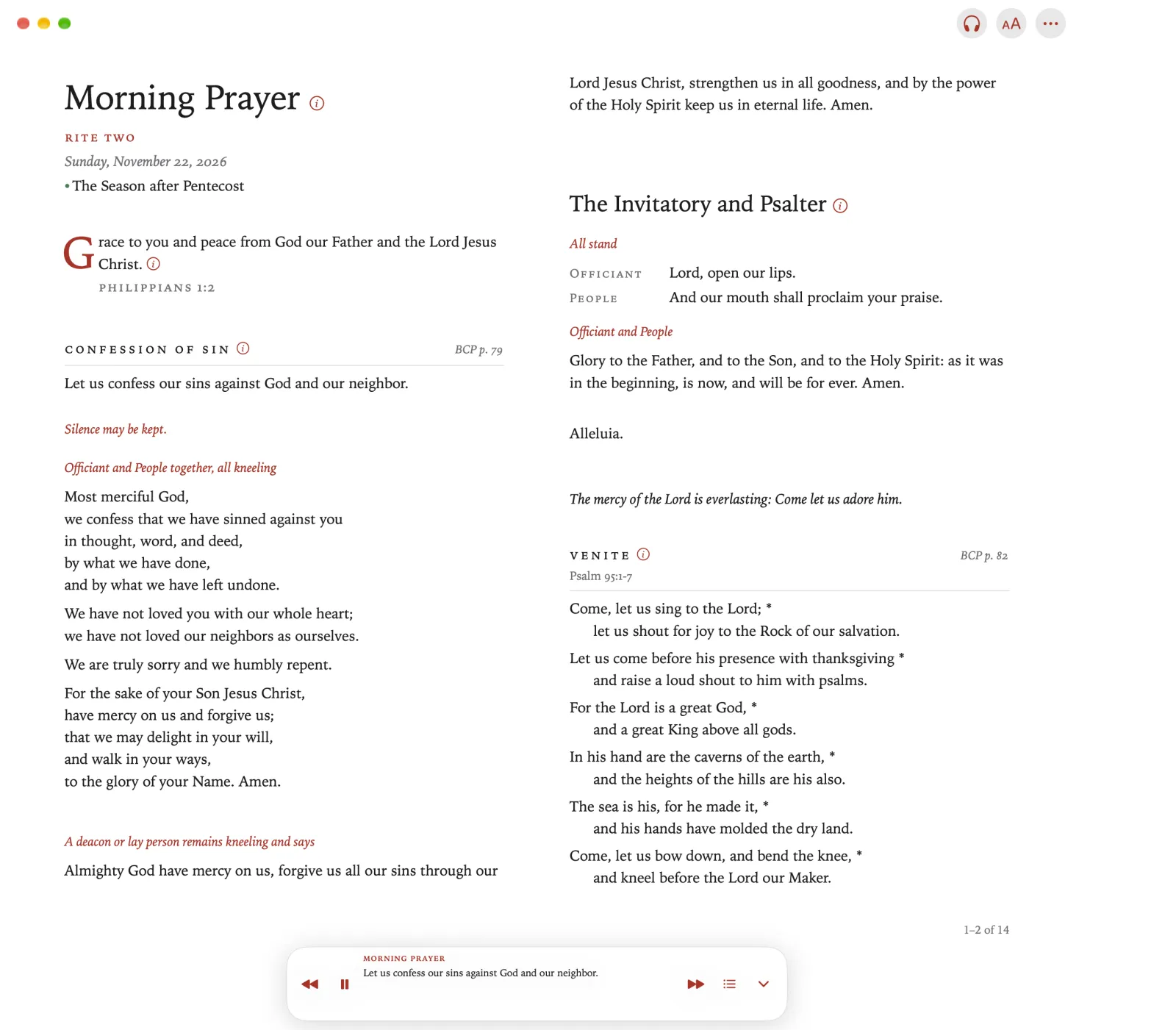
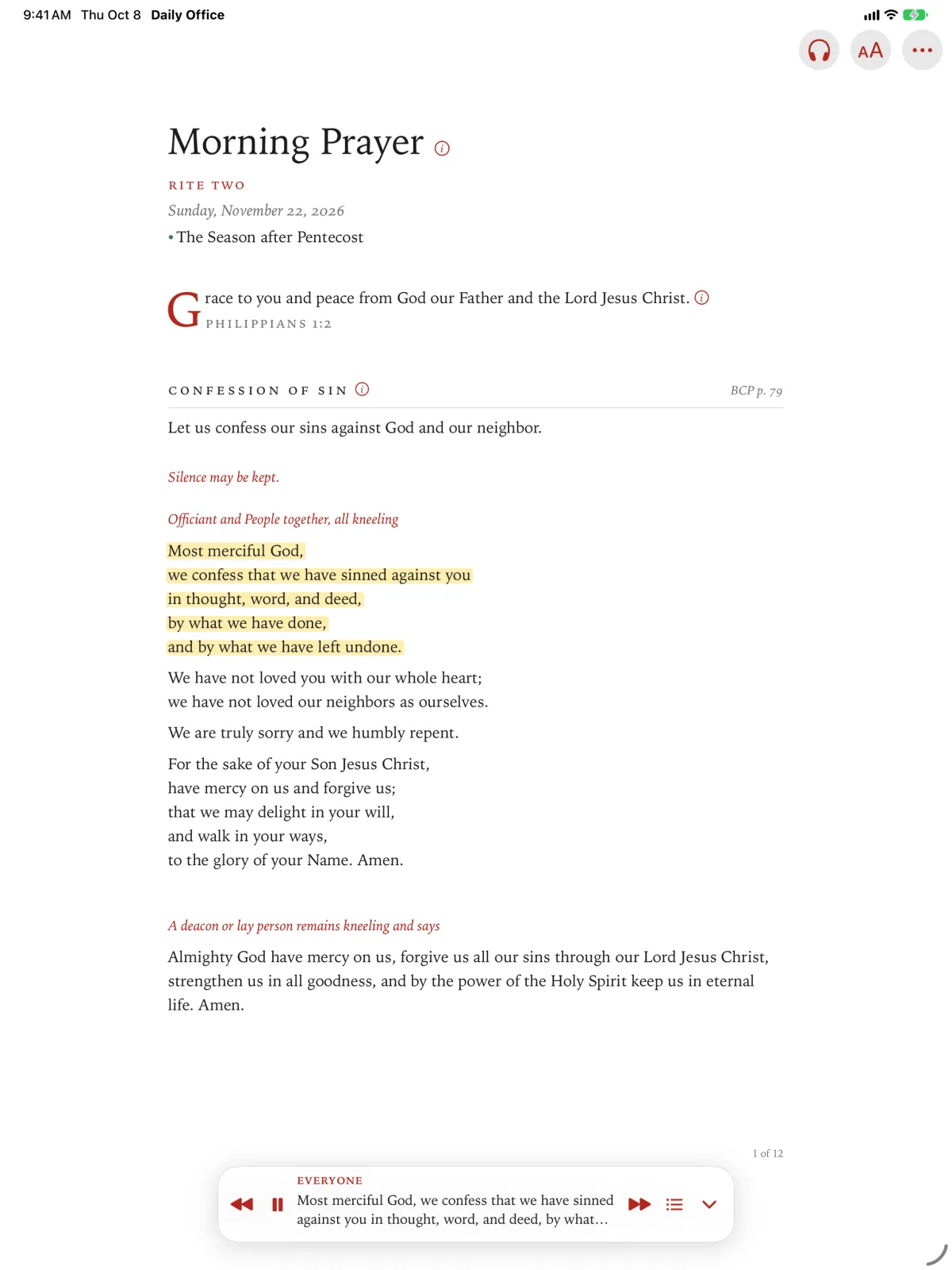
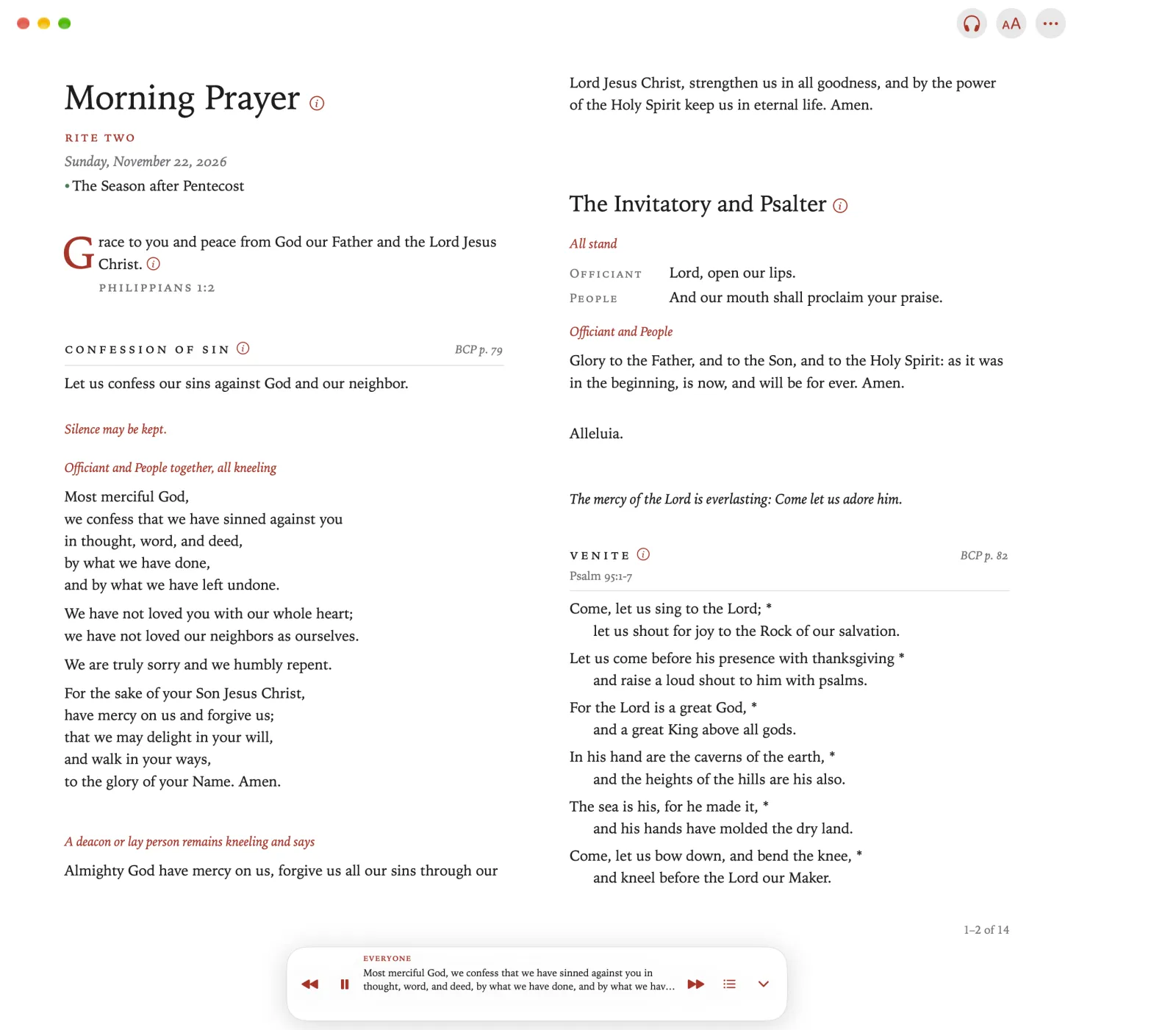
While the voice reads, the bar at the foot of the page shows the line being read. Its buttons move the voice:
- The back button starts the line again, or goes back a line if it has just begun; the forward button goes on a line.
- The list button shows the office’s parts. Tap one to move the voice, and the page, there.
- The down arrow makes the bar small. The voice keeps reading.
- The back button starts the line again, or goes back a line if it has just begun; the forward button goes on a line.
- The list button shows the office’s parts. Click one to move the voice, and the page, there.
- The down arrow makes the bar small. The voice keeps reading.
- The back button starts the line again, or goes back a line if it has just begun; the forward button goes on a line.
- The list button shows the office’s parts. Pinch one to move the voice, and the page, there.
- The down arrow makes the bar small. The voice keeps reading.
Making the bar small
Tap the down arrow, at the end of the bar.
The bar shrinks to two buttons: Play or Pause, and the up arrow.
Click the down arrow, at the end of the bar.
The bar shrinks to two buttons: Play or Pause, and the up arrow.
Pinch the down arrow, at the end of the bar.
The bar shrinks to two buttons: Play or Pause, and the up arrow.
Tap the up arrow to show the whole bar again.
Click the up arrow to show the whole bar again.
Pinch the up arrow to show the whole bar again.
Stopping the voice
The bar has no stop button, so a stray tap never ends the reading.
The bar has no stop button, so a stray click never ends the reading.
The bar has no stop button, so a stray pinch never ends the reading.
Tap Listen in the toolbar.
Click Listen in the toolbar.
Pinch Listen in the toolbar.
Tap Stop.
The voice stops, and the bar goes away.
Click Stop.
The voice stops, and the bar goes away.
Pinch Stop.
The voice stops, and the bar goes away.
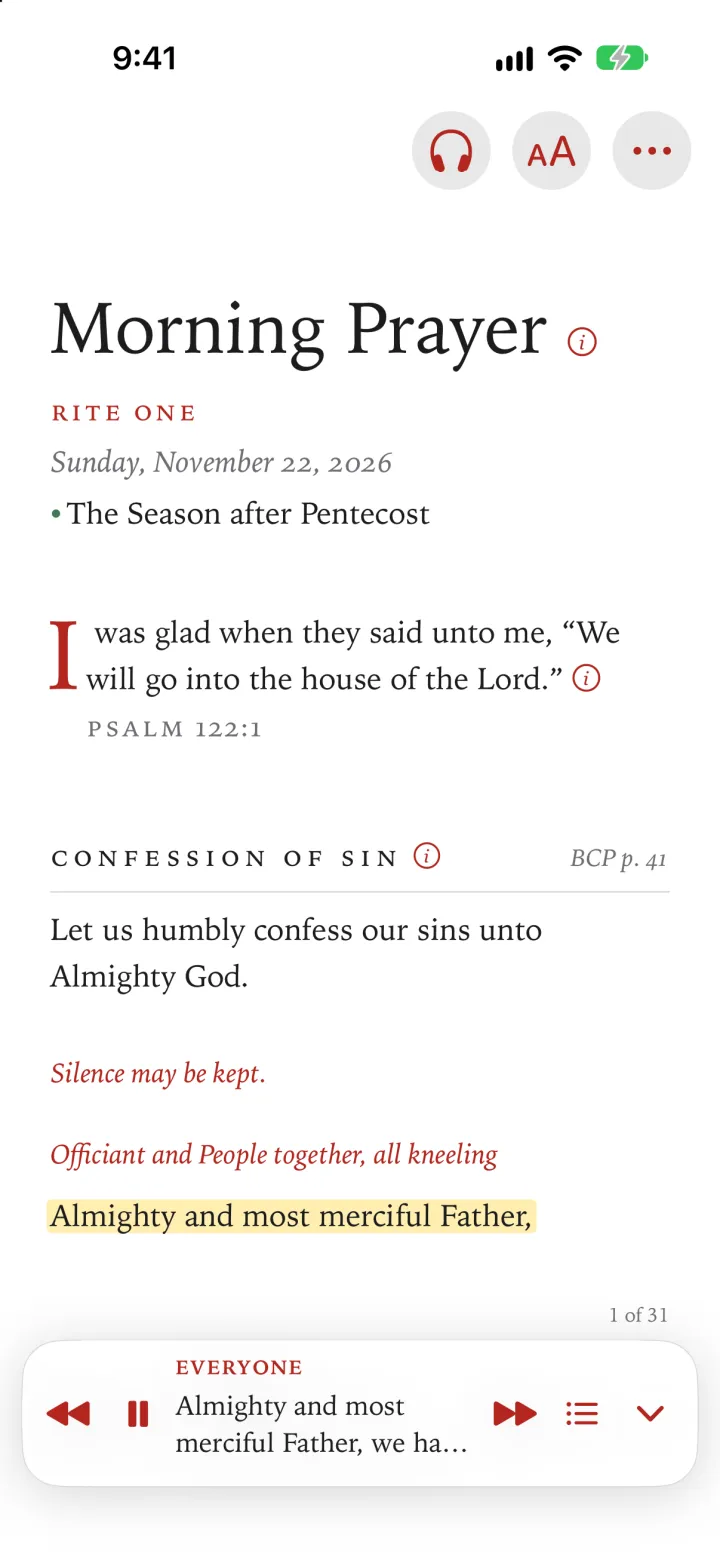
While the voice reads, click right on the remote to move it on to the next part of the office, and left to go back to the start of the part, or to the part before. The page follows the voice.
There is no Stop on Apple TV: press Play/Pause to pause the voice, or choose another office, which stops it.