 Daily Office
Lesson 1 of 4 · About 3 minutes
Having the Office Read Aloud
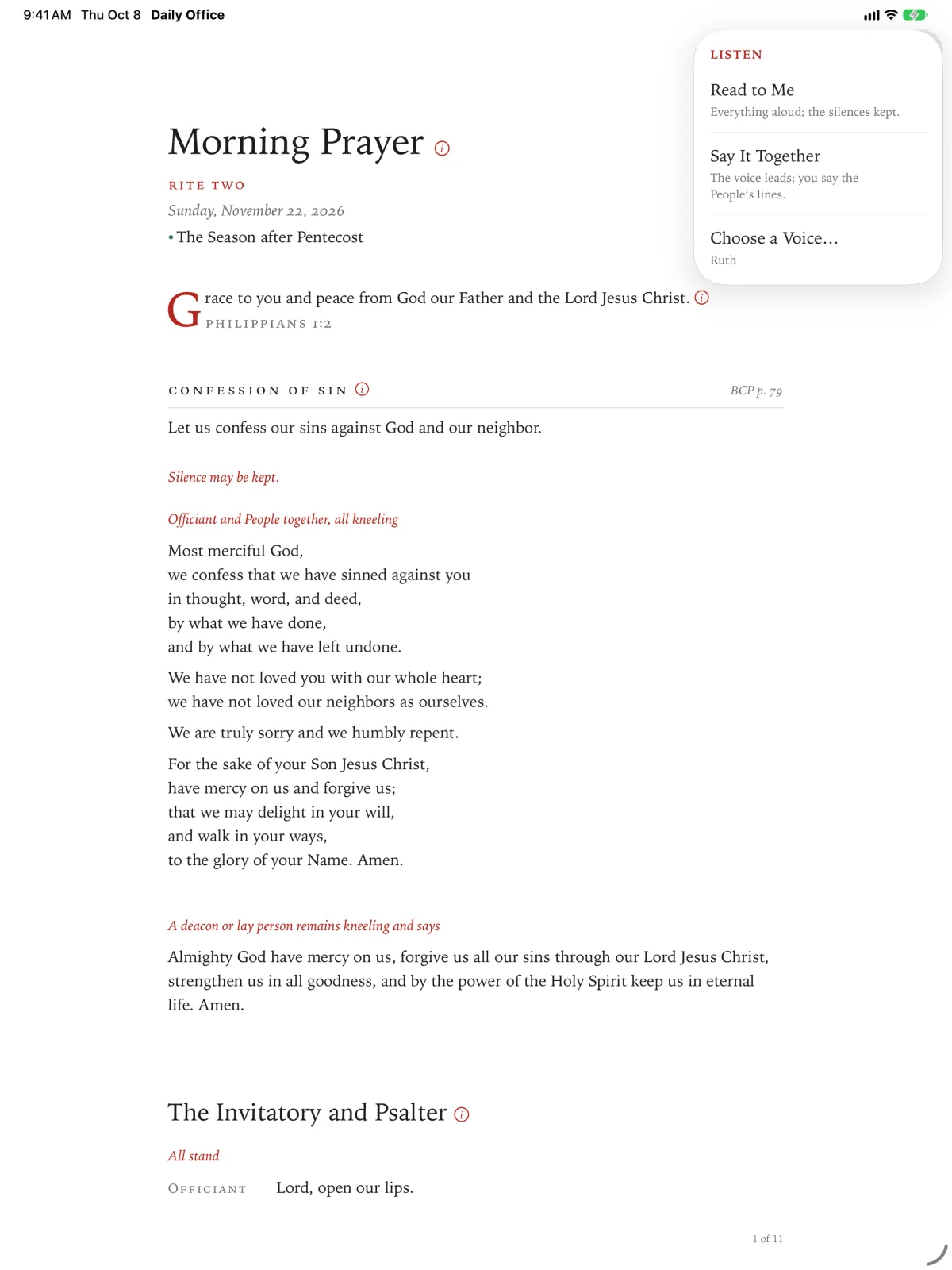
Tap Listen, the headphones in the toolbar.
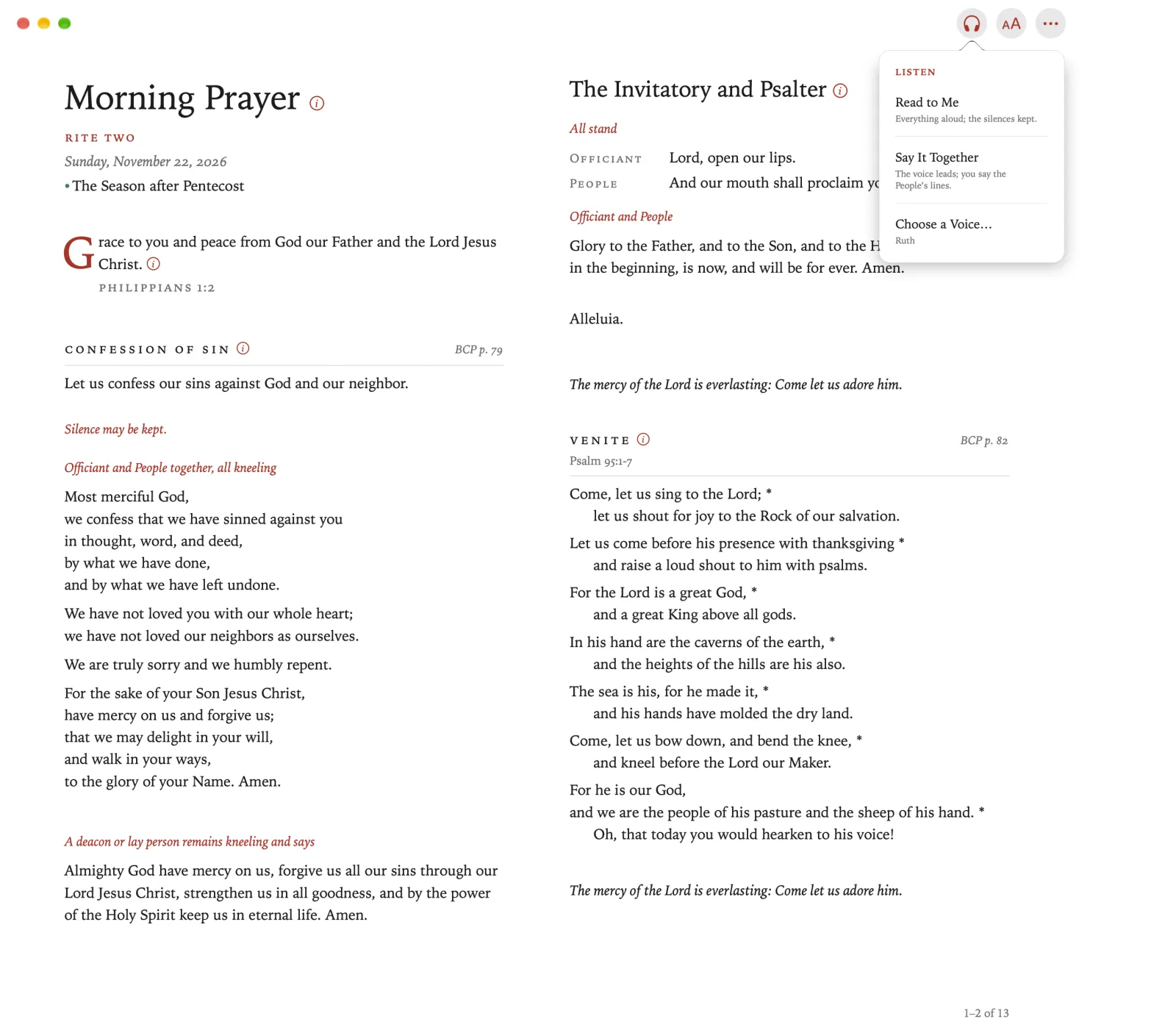
Click Listen, the headphones in the toolbar.
Pinch Listen, the headphones in the toolbar.
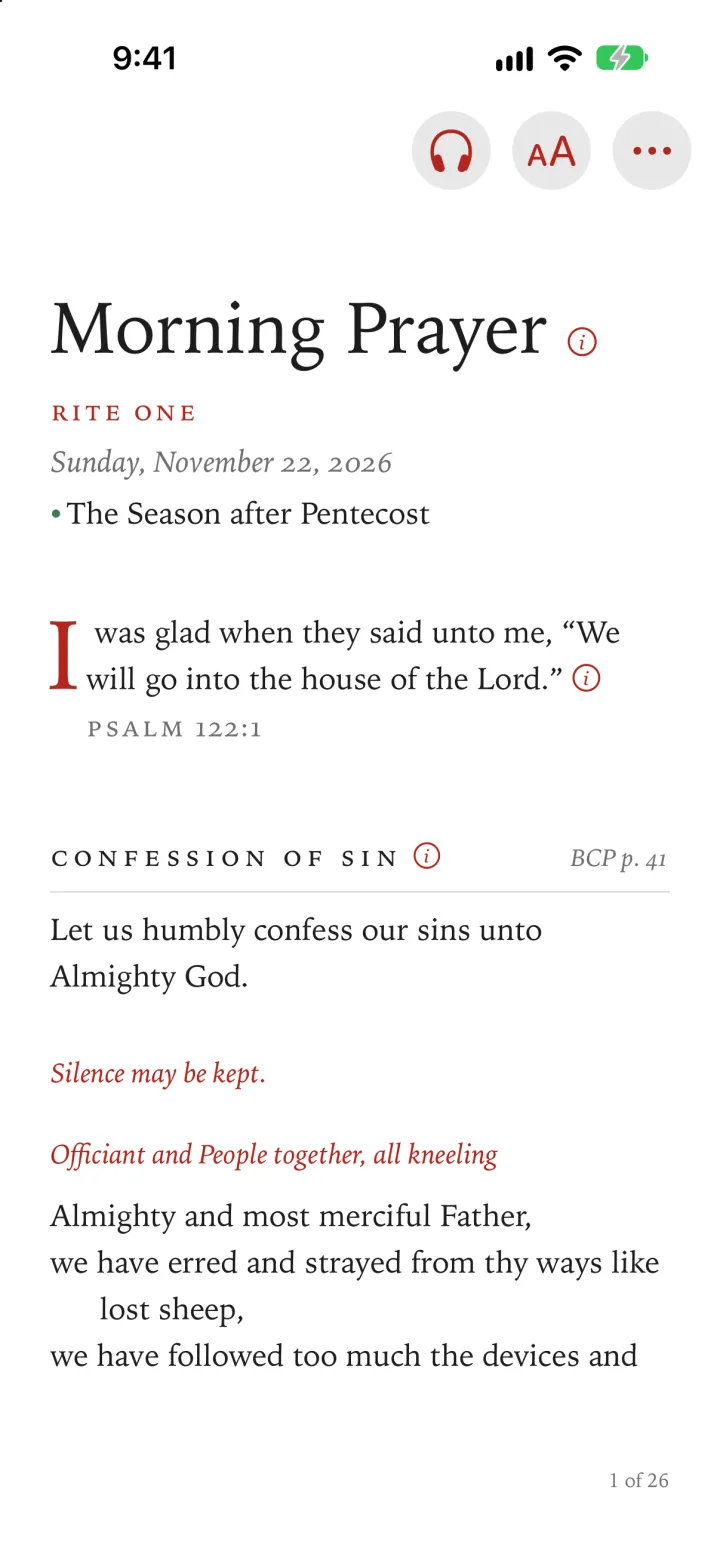
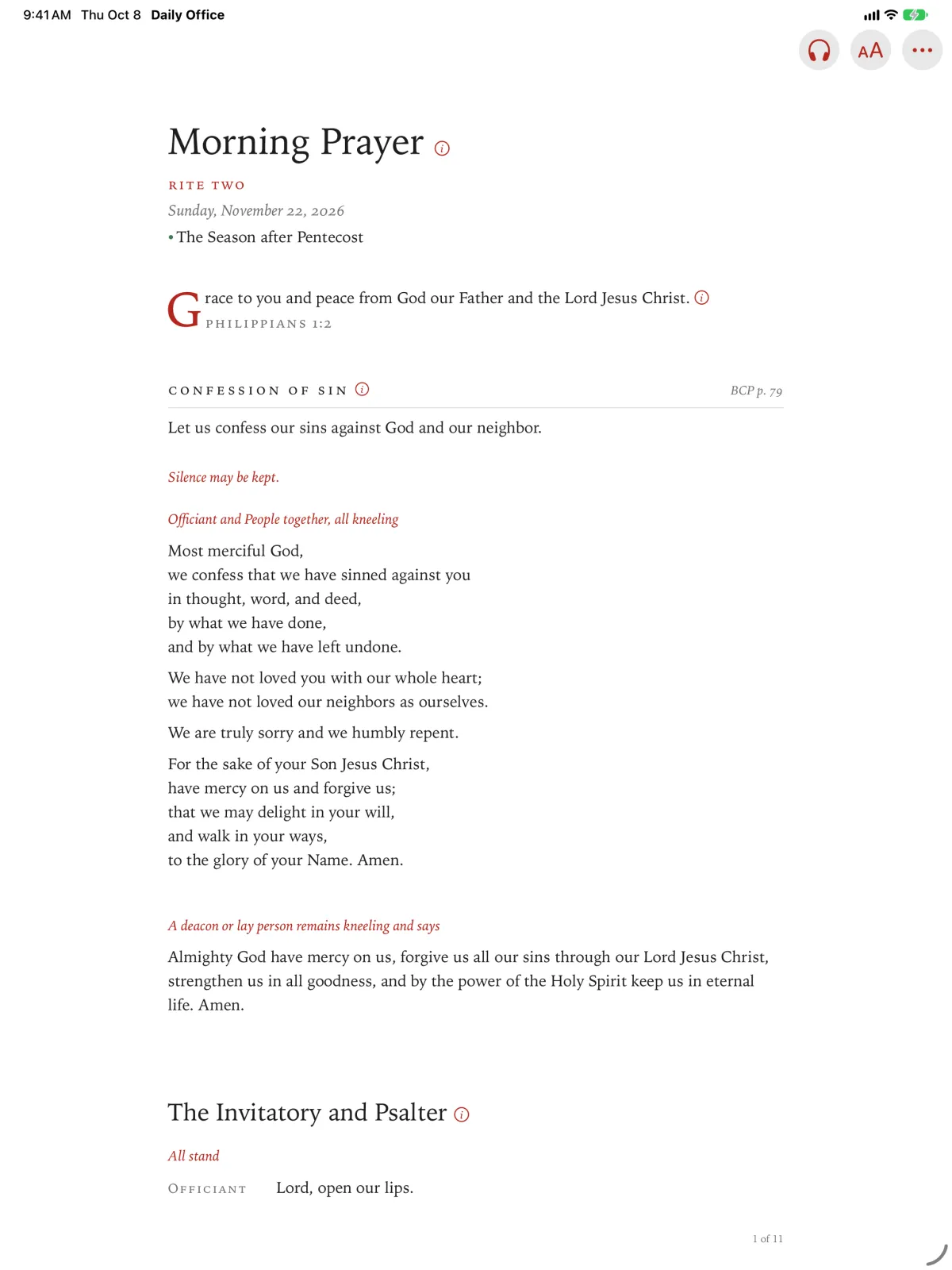
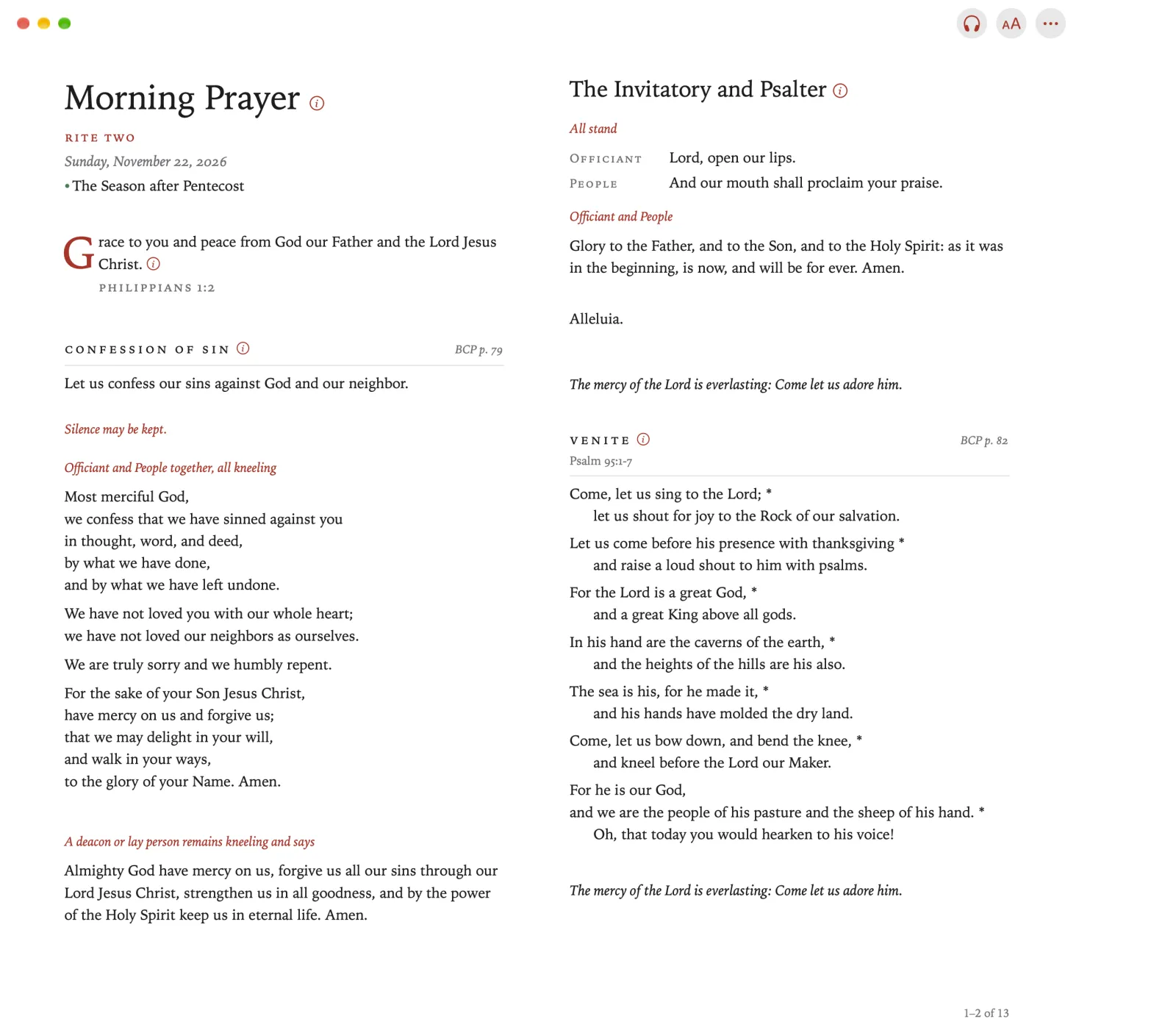
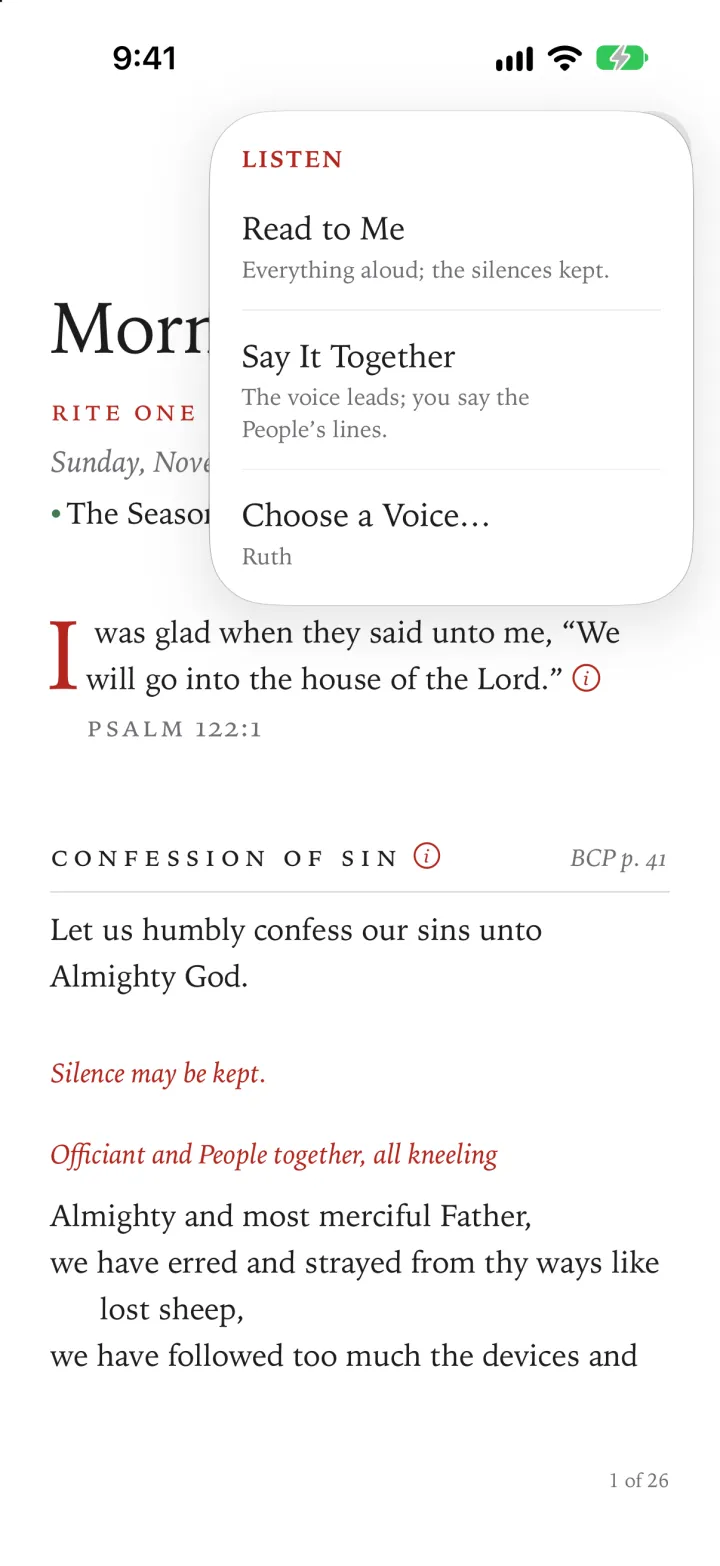
Listen opens, with two ways to listen:
- Read to Me reads the office aloud, and keeps the silences the BCP asks for.
- Say It Together reads the Officiant’s lines, and leaves the People’s lines for you to say.
Tap Read to Me or Say It Together.
Click Read to Me or Say It Together.
Pinch Read to Me or Say It Together.
The voice gets ready, and then begins. A bar appears at the foot of the page, with the line being read.
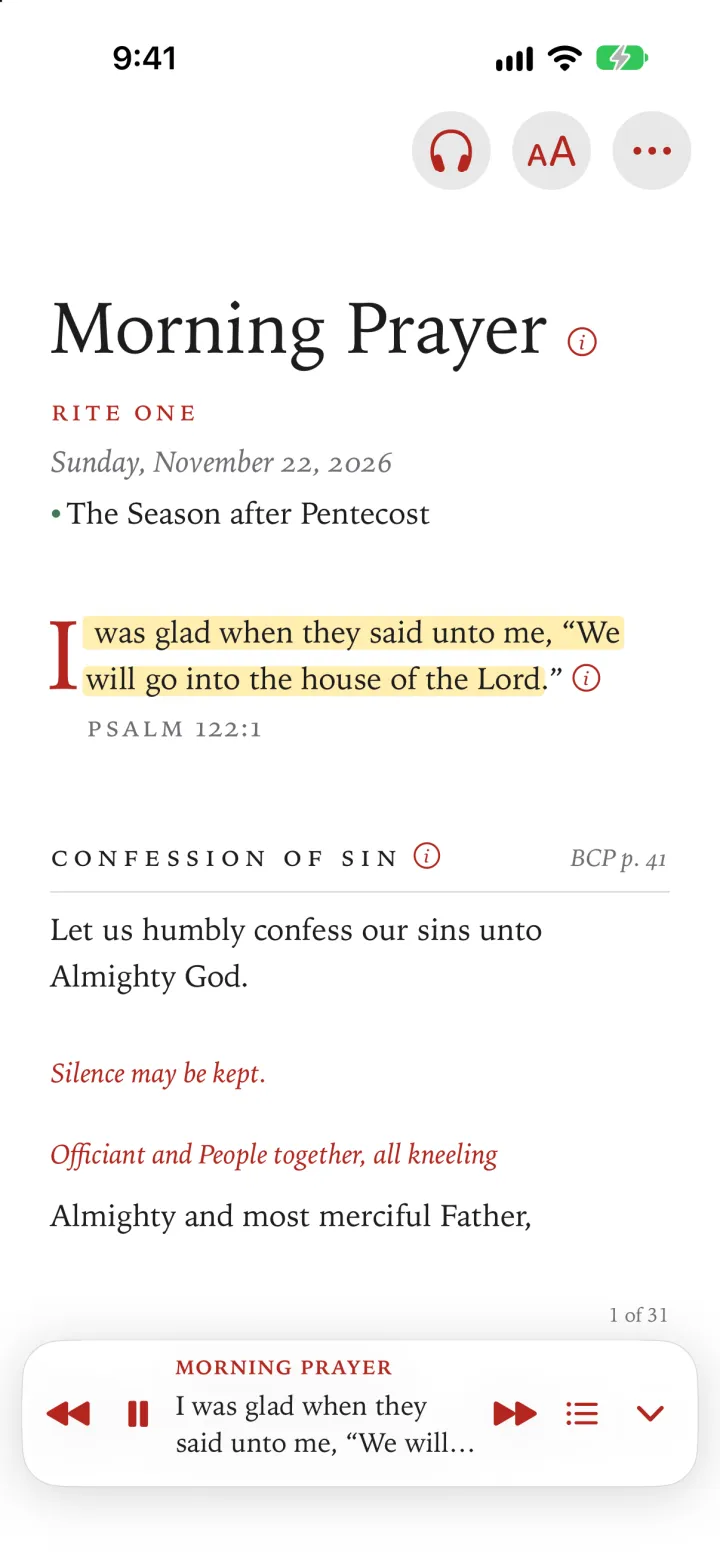
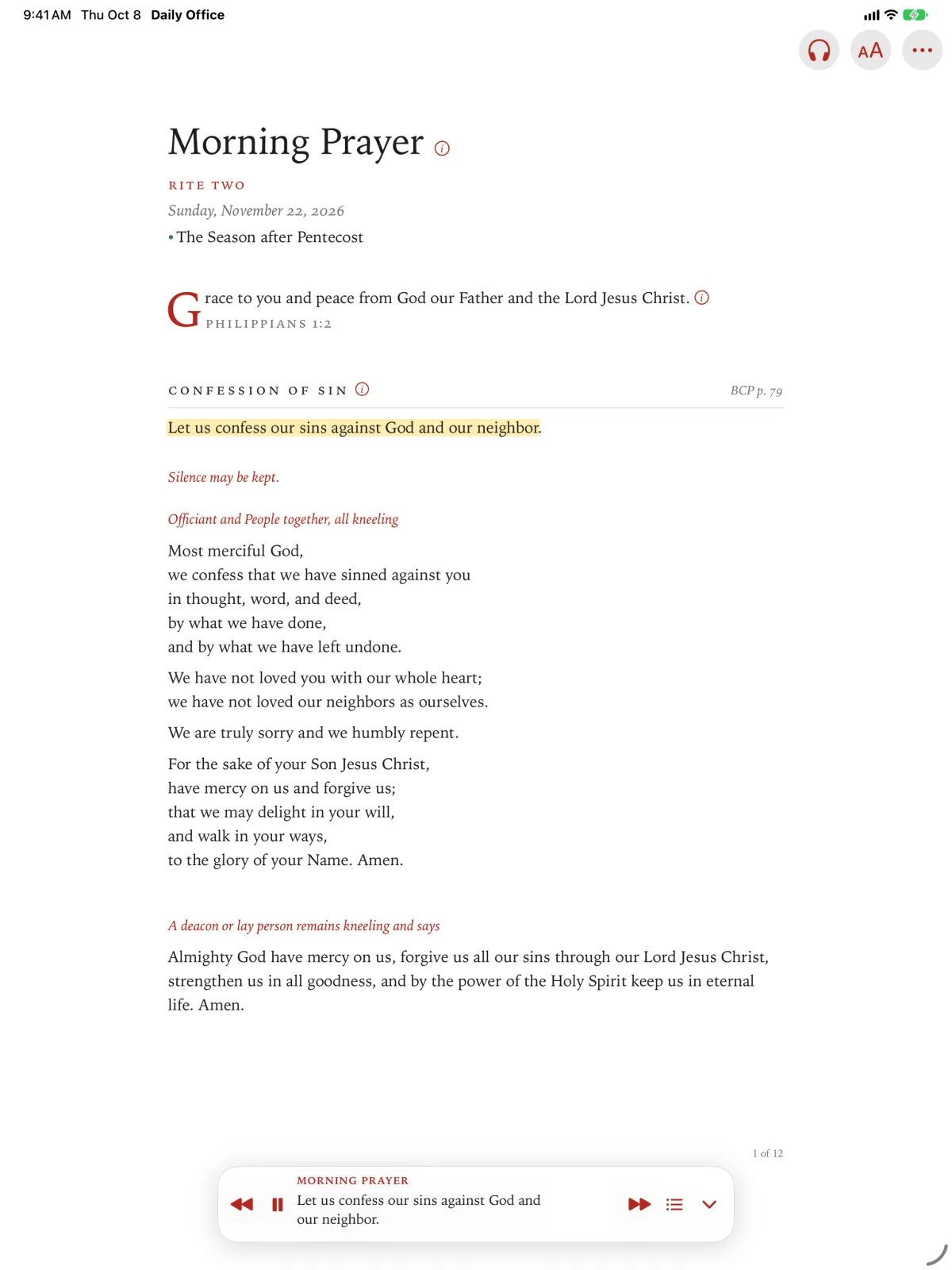
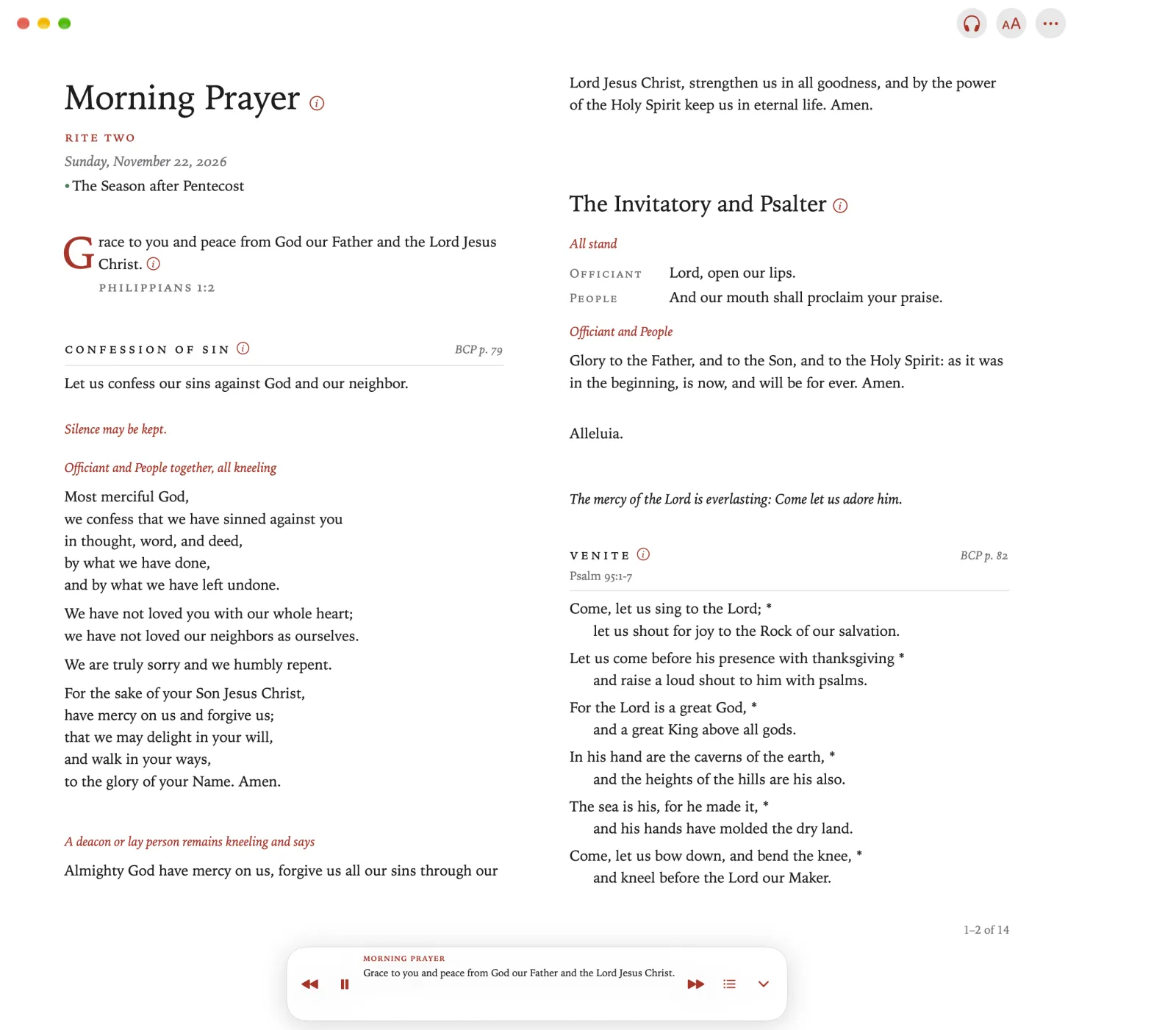
To pause, tap Pause in the bar. To go on, tap Play.
The voice goes on from where it stopped.
To pause, click Pause in the bar. To go on, click Play.
The voice goes on from where it stopped.
To pause, pinch Pause in the bar. To go on, pinch Play.
The voice goes on from where it stopped.
With an office on the screen, press Play/Pause on the remote.
The voice begins to read.
Press Play/Pause again to pause, and again to go on.
Apple TV reads in the way you choose in Settings: Read to Me or Say It Together. Lesson 4 shows you where.
Saying it together
In Say It Together, the voice stops at each of your lines and waits while you say it.
Your line is shown in the bar. Tap it to go on sooner.
Your line is shown in the bar. Click it to go on sooner.
Your line is shown in the bar. Pinch it to go on sooner.
Press Play/Pause to go on sooner.