 Daily Office
Lesson 4 of 4 · About 2 minutes
Another Office, Another Day
Go to lets you choose any office, on any day. The app works out the season, the feasts and the readings for any year.
On Apple TV, Go to offers the offices and devotions, and the days from two weeks before today to two weeks after.
Tap the office’s title and date, at the top of its first page.
Click the office’s title and date, at the top of its first page.
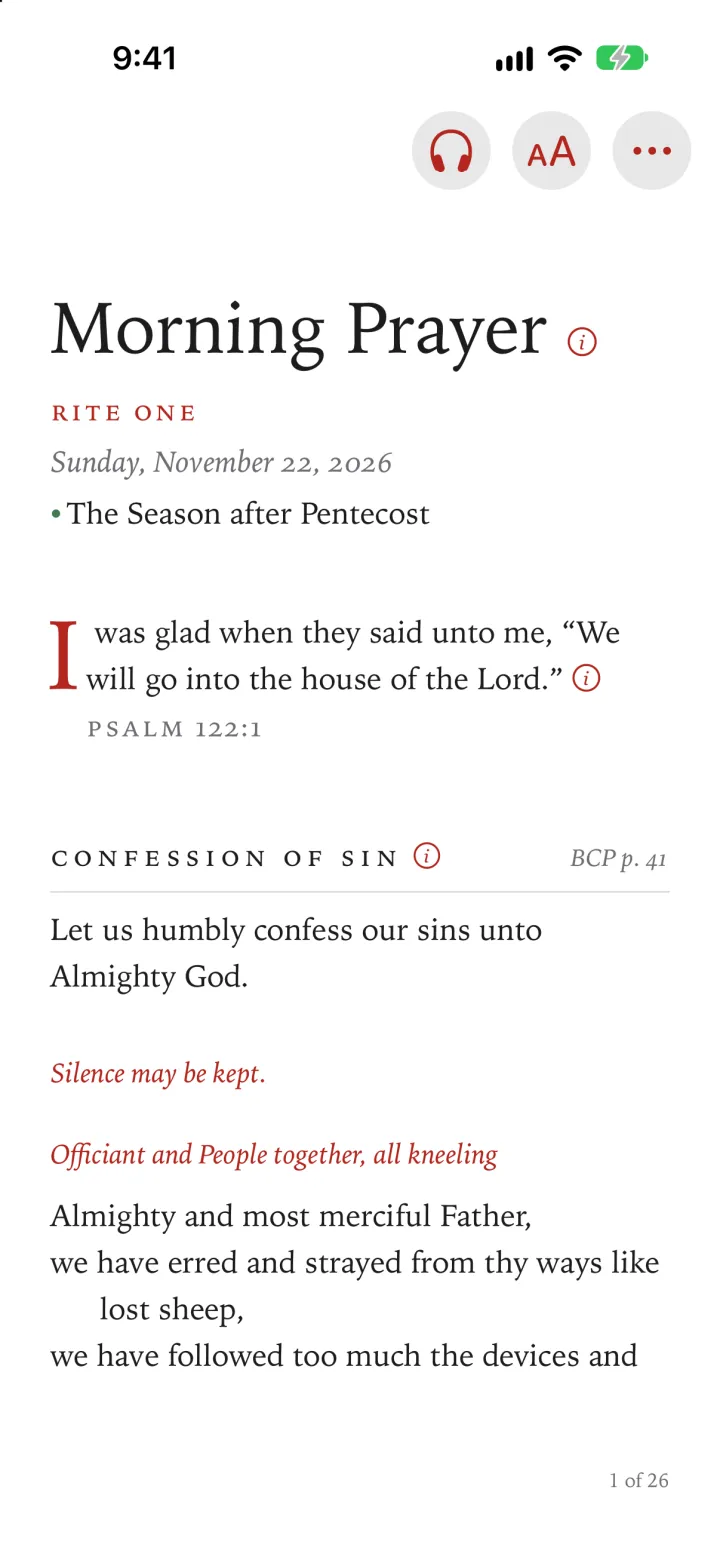
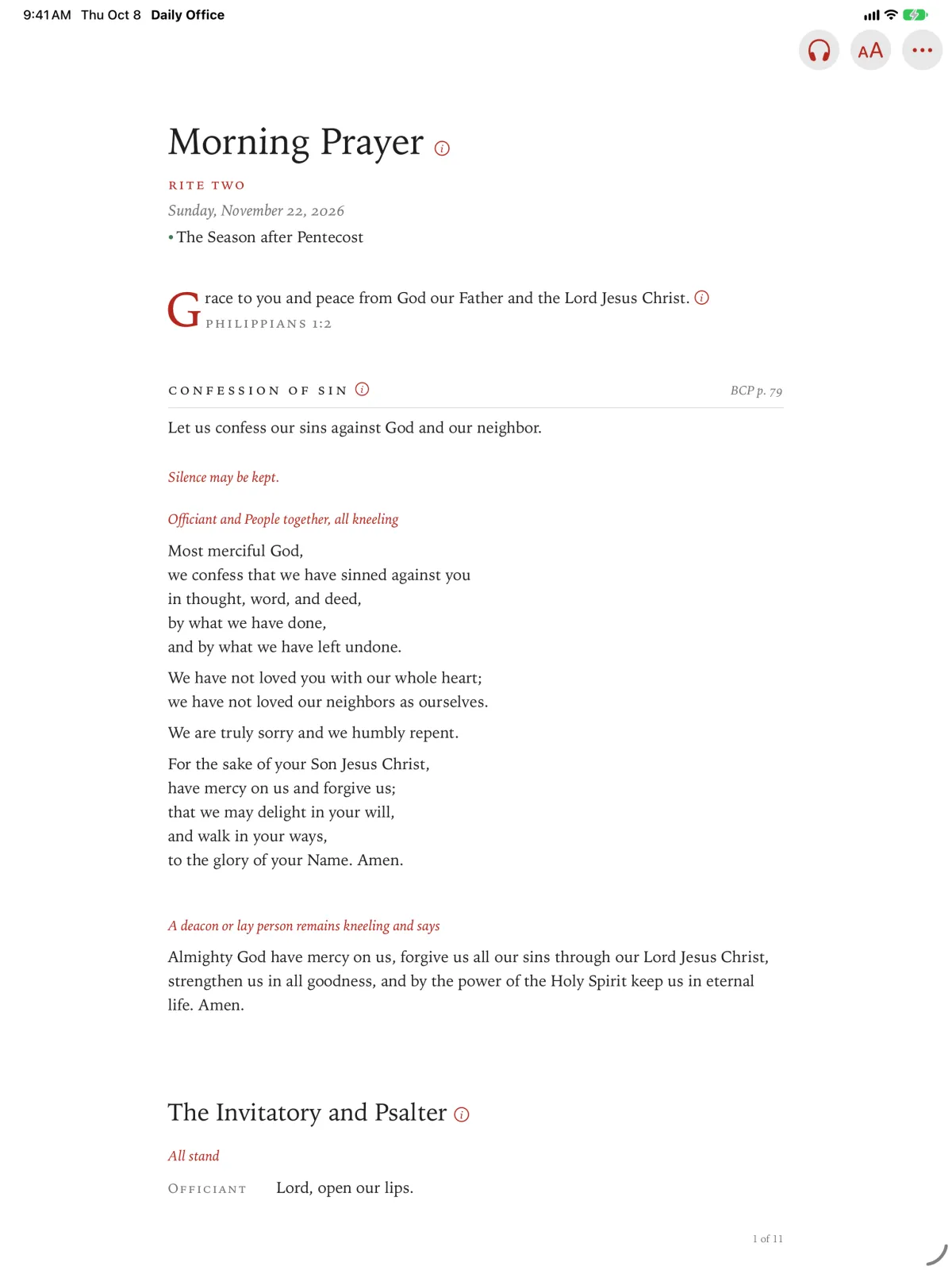
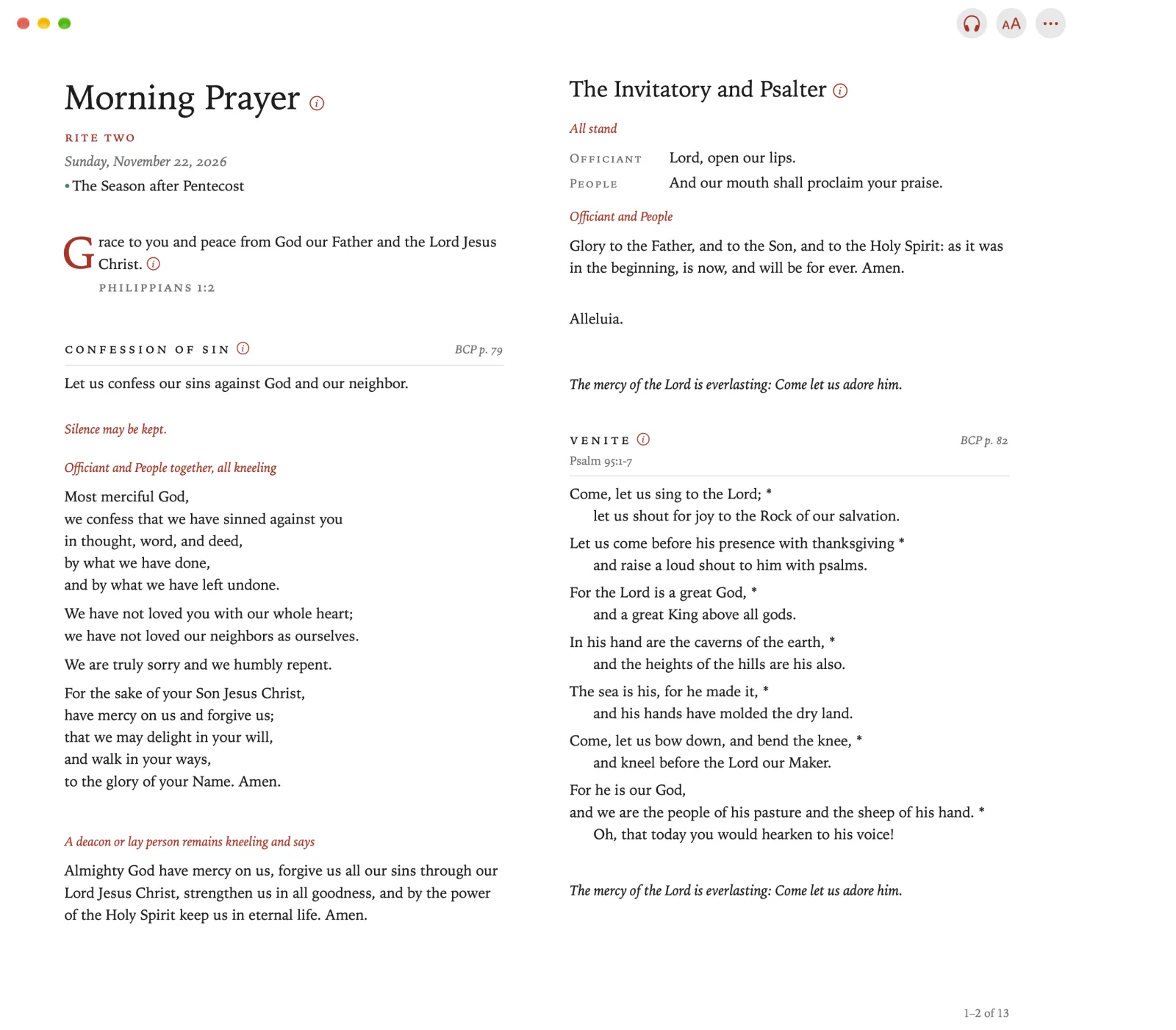
Go to opens.
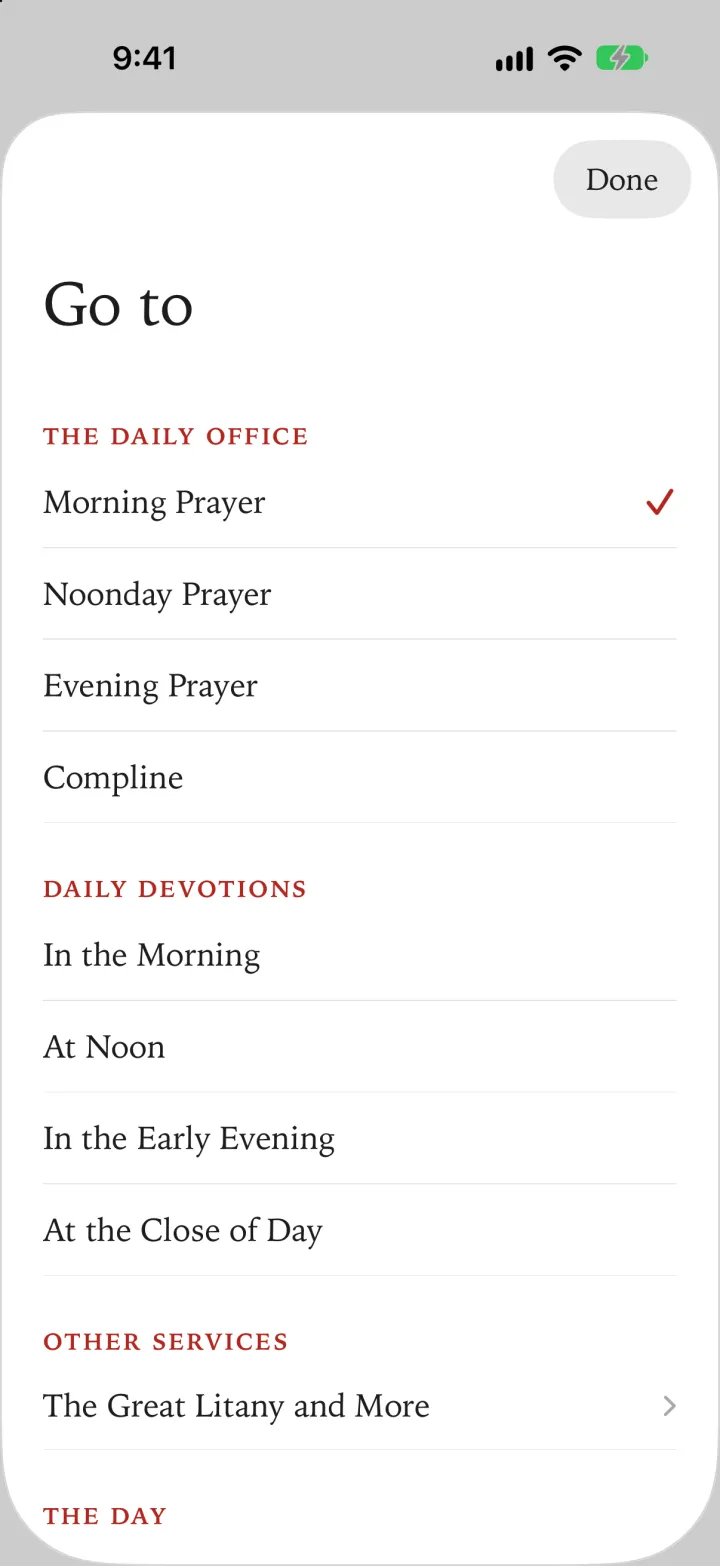
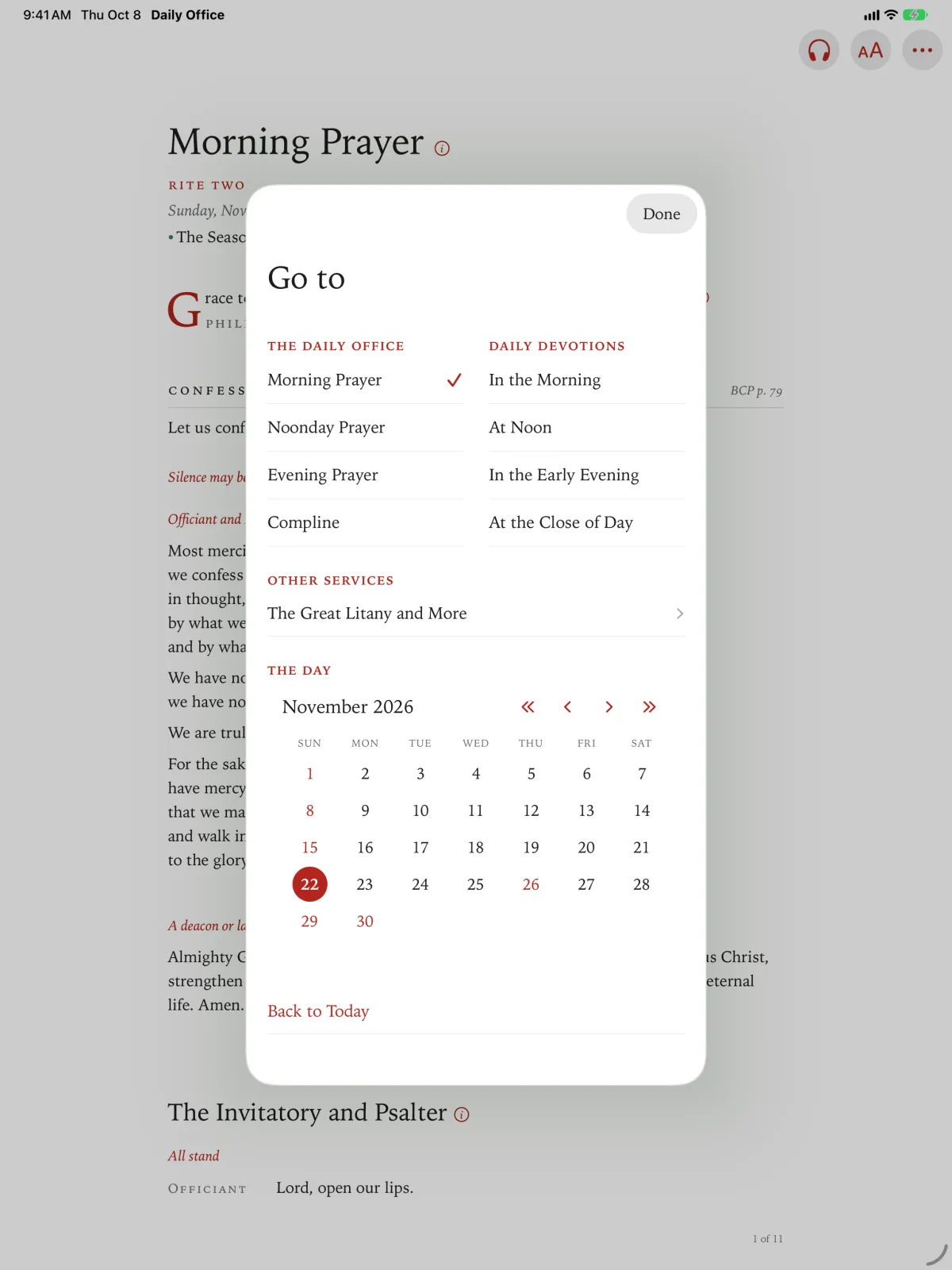
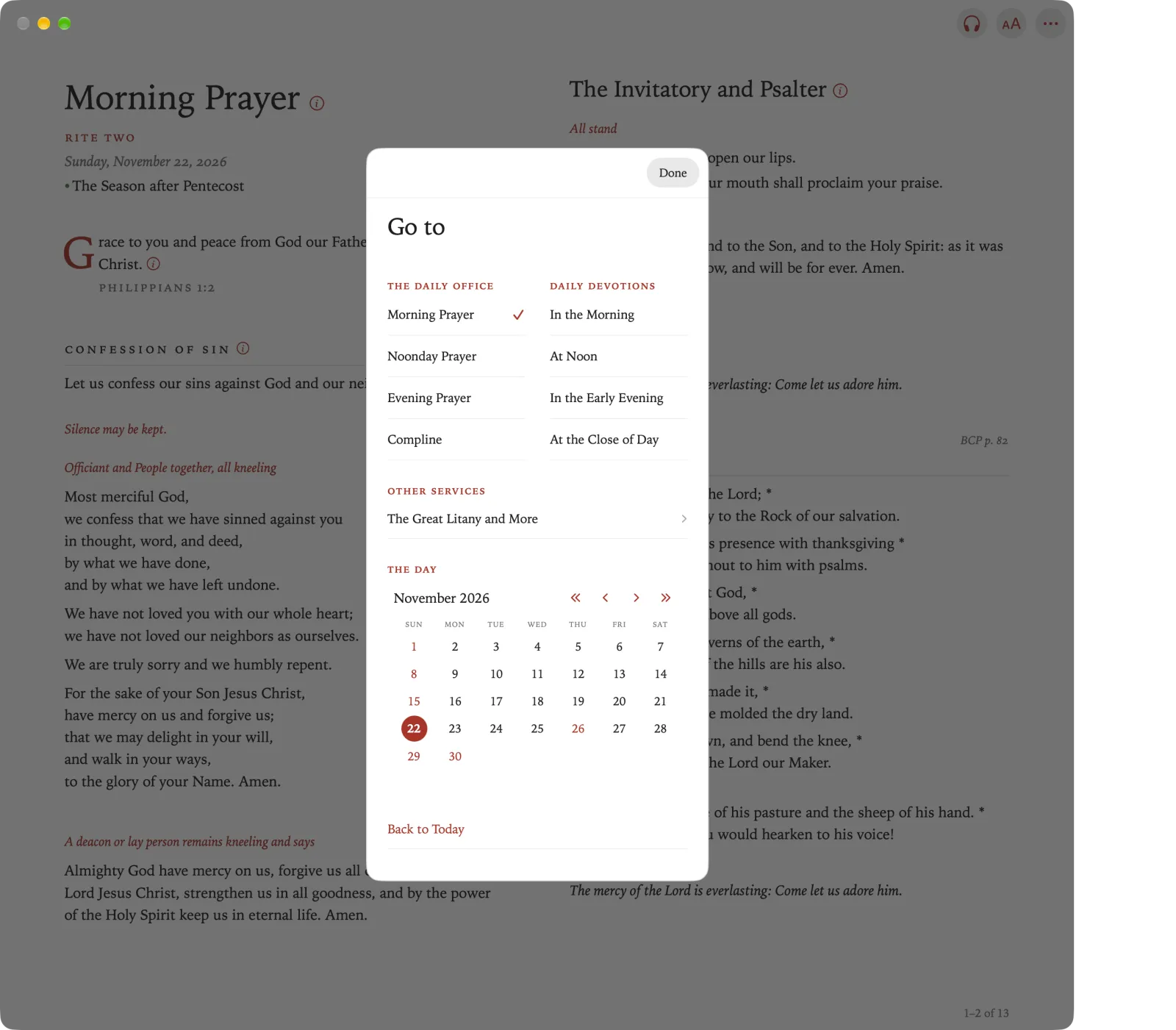
Choose an office or a devotion.
To choose a day, scroll down to The Day and choose a date on the calendar. Back to Today returns you to today.
Tap Done. The office you chose opens, at the top.
Click Done. The office you chose opens, at the top.
Pinch Go to in the toolbar, or the title and date at the top of the office.
Choose an office or a devotion, and a day under The Day.
Pinch Done.
Press Back to show the sidebar, and then select Go to.
Choose an office or a devotion, or a day. Go to closes, and the office opens. To change both, open Go to again.
Learning more
Learn is at the foot of Settings, under Daily Office, with About and Links & Feedback. It holds the tours, a topic for each part of the app, and a link to this Guide.
Learn is at the foot of Settings, under Daily Office, with About and Links & Feedback. It holds a topic for each part of the app, and a link to this Guide.
Choose Learn Daily Office from the Help menu, or press ⇧⌘L. It holds a topic for each part of the app, and links to the tours and to this Guide.
Learn is in the sidebar, after Settings. It holds a topic for each part of the app.
Try it as a tourA Tour of Daily Office: step through it on the app’s own screens.