 Daily Office
Lesson 2 of 4 · About 3 minutes
Finding Your Way Around the Page
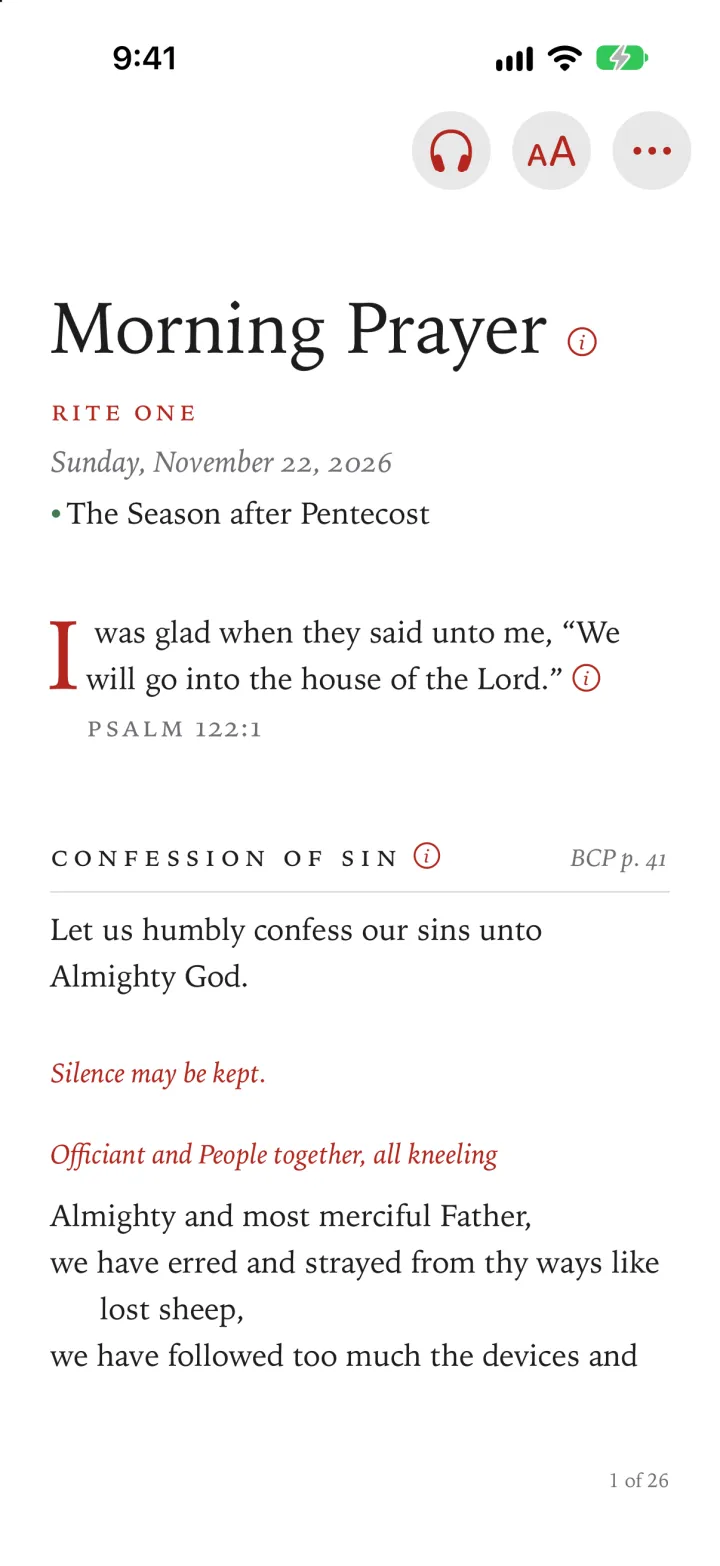
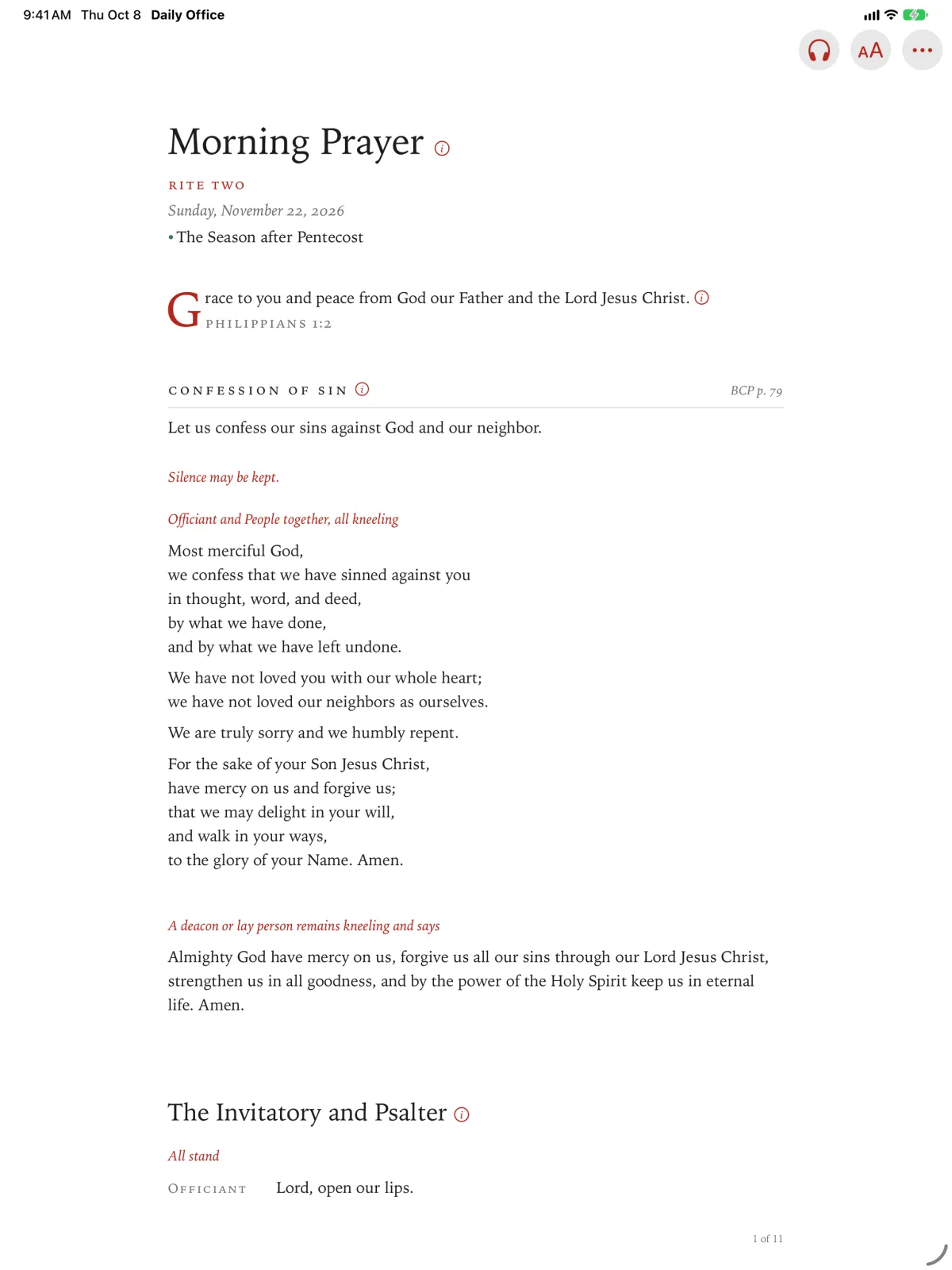
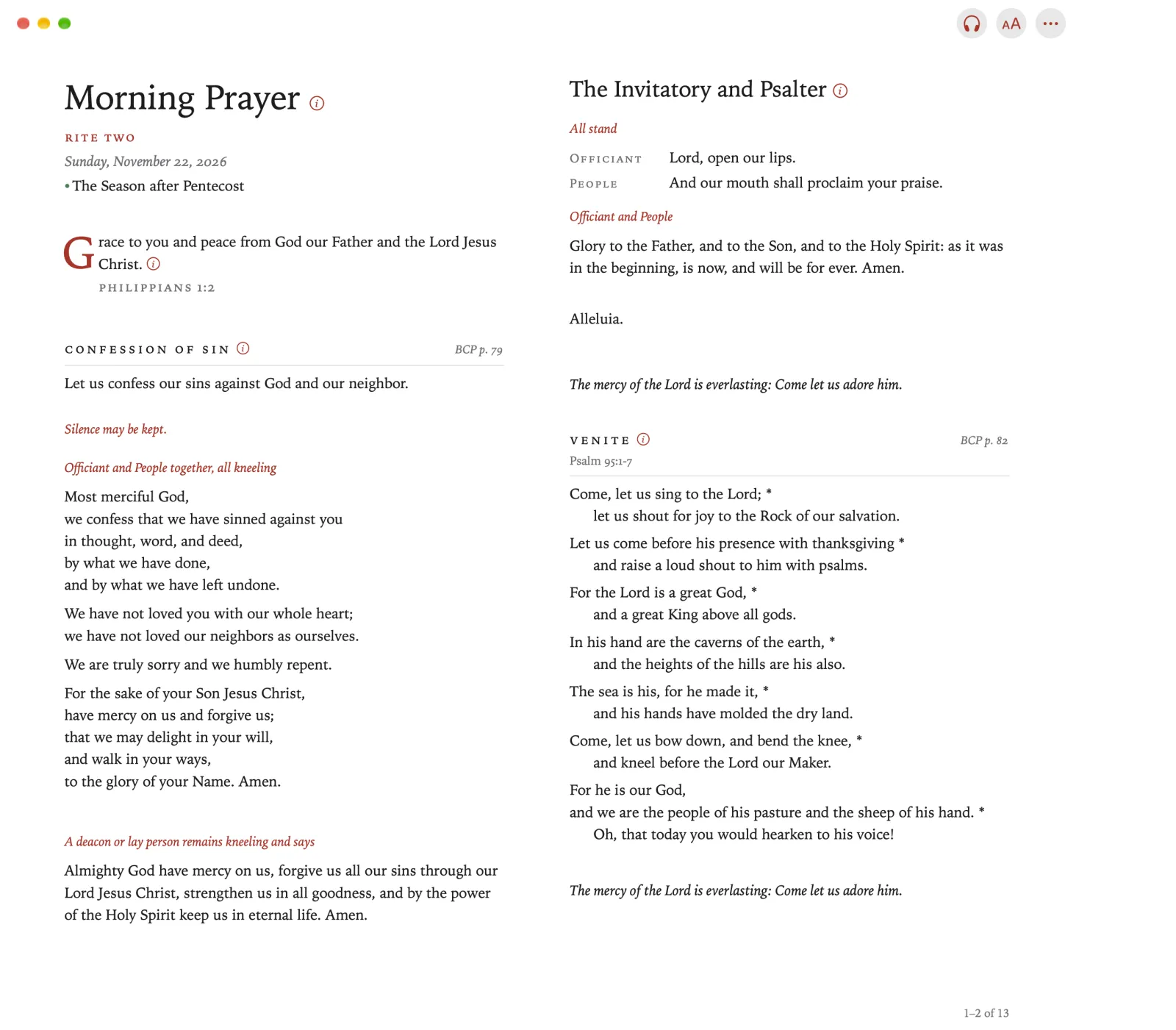
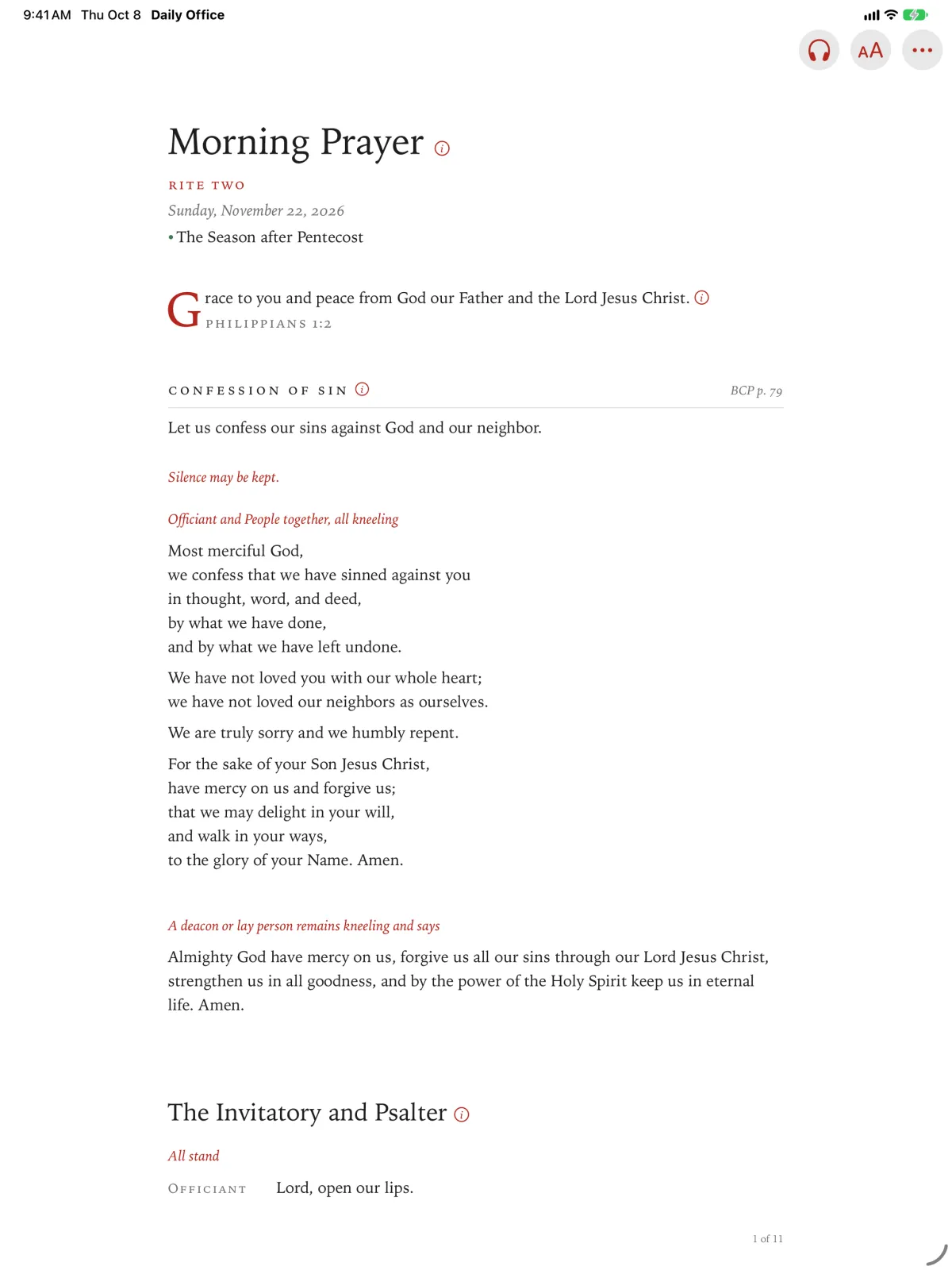
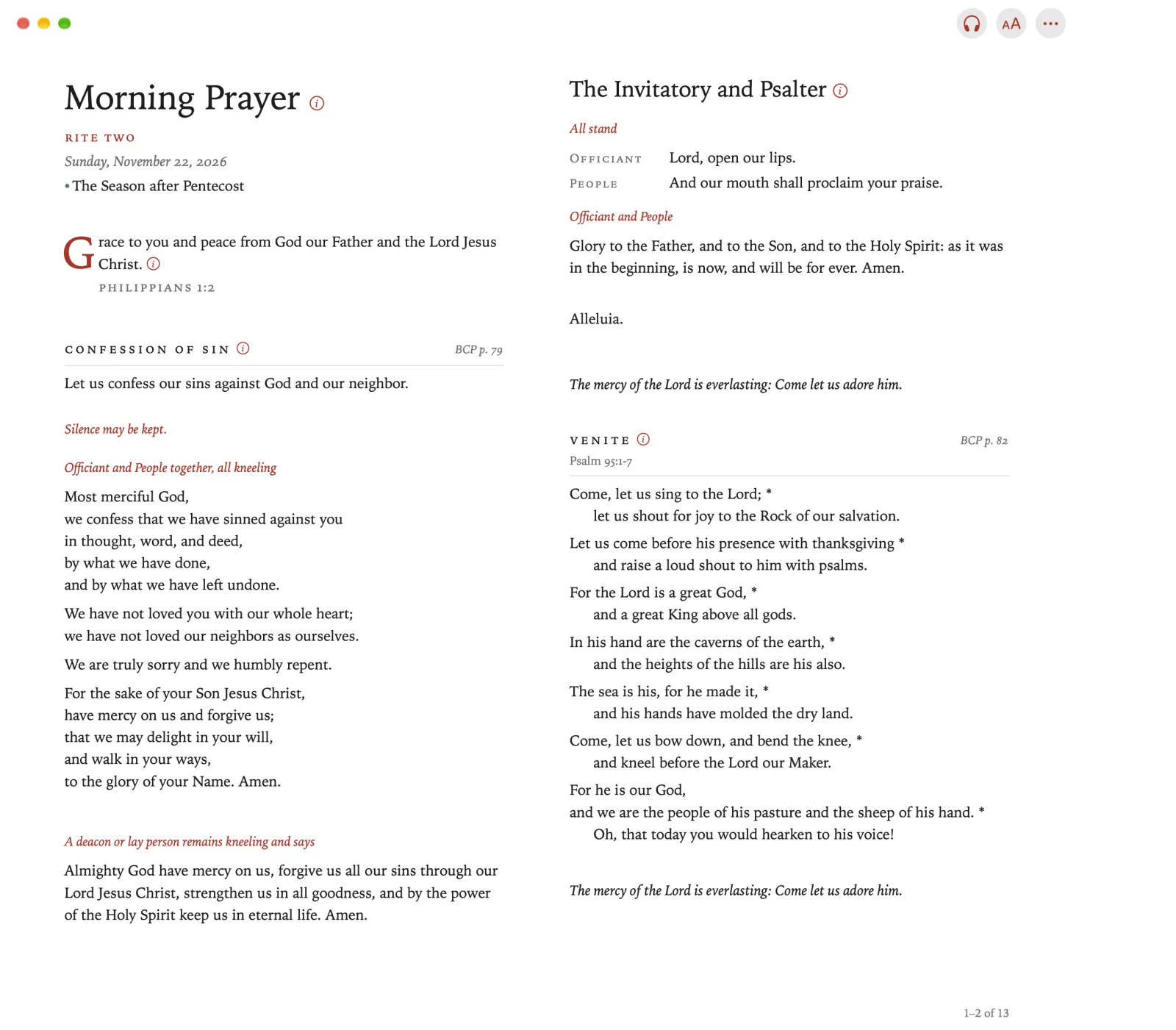
Each office is set out as the BCP prints it. The office’s name, its rite and the day come first. Then the office itself begins, in order, from the opening sentence to the end.
As you read, you’ll notice a few things:
- Directions are printed in red, as the BCP prints them. They tell you what is done, not what is said.
- Each part shows its page in the BCP, so you can follow along in your own copy.
- A small red i beside a heading opens a short note on that part of the office: where it comes from, and why it stands where it does.
Turning the pages
The office is set in pages, like a printed book. Held sideways, two pages are shown at a time. (You can choose one continuous scroll instead, in Themes.)
Tap near the right edge of the page, or swipe left, to turn to the next page.
Tap near the left edge, or swipe right, to go back a page.
The office is set in pages, like a printed book, two at a time when the window is wider than it is tall. (You can choose one continuous scroll instead, in Themes.)
Click near the right edge of the page, or press →, to turn to the next pages.
Click near the left edge, or press ←, to go back.
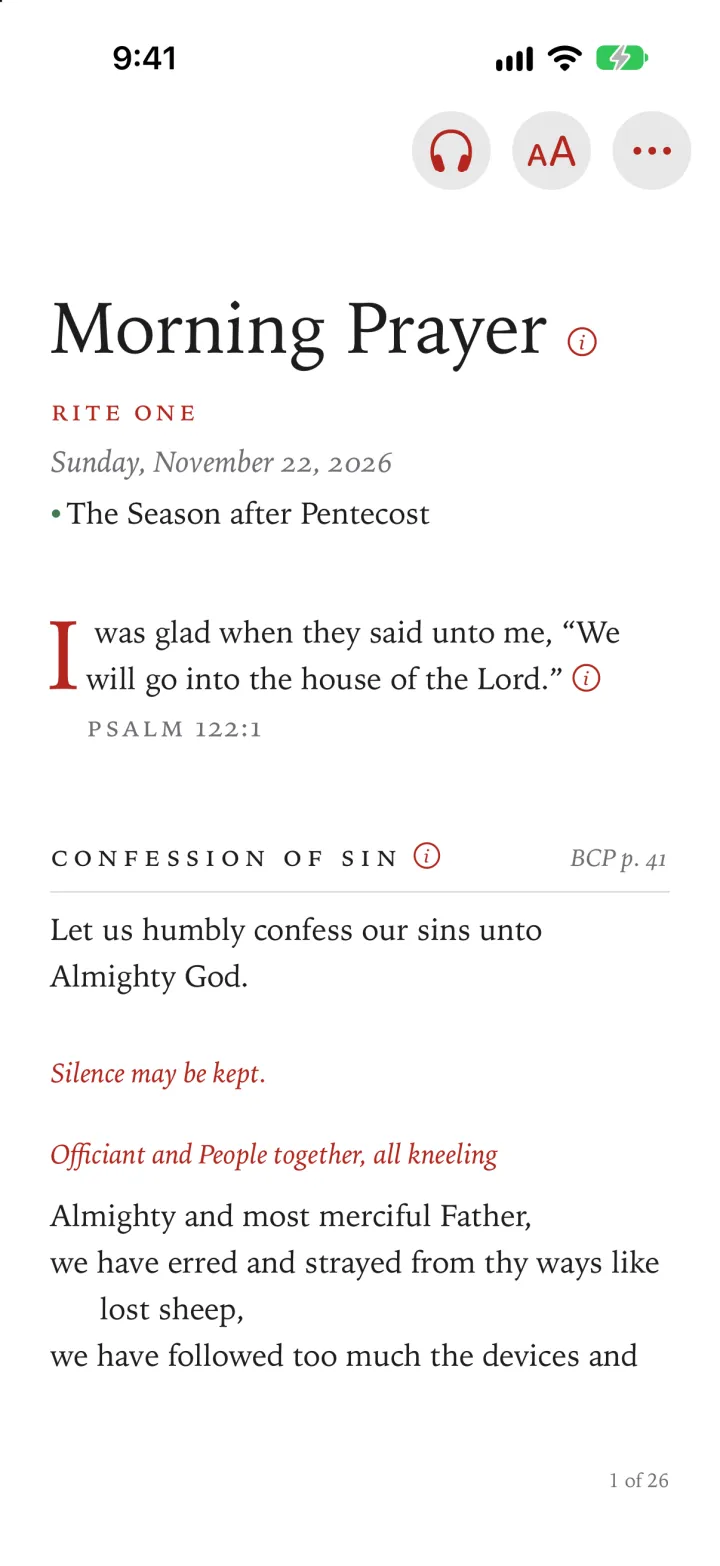
The office is one continuous scroll. Look toward the bottom of the window to scroll on, or pinch and drag.
The office is one continuous scroll.
Swipe on the remote to move through it.
Click right to go on to the next part of the office, and left to go back to the start of this part, or to the one before.