 Daily Office
Lesson 2 of 4 · About 2 minutes
Rite and Hours
In Settings, tap Rite and Hours.
In Settings, click Rite and Hours.
In Settings, pinch Rite and Hours.
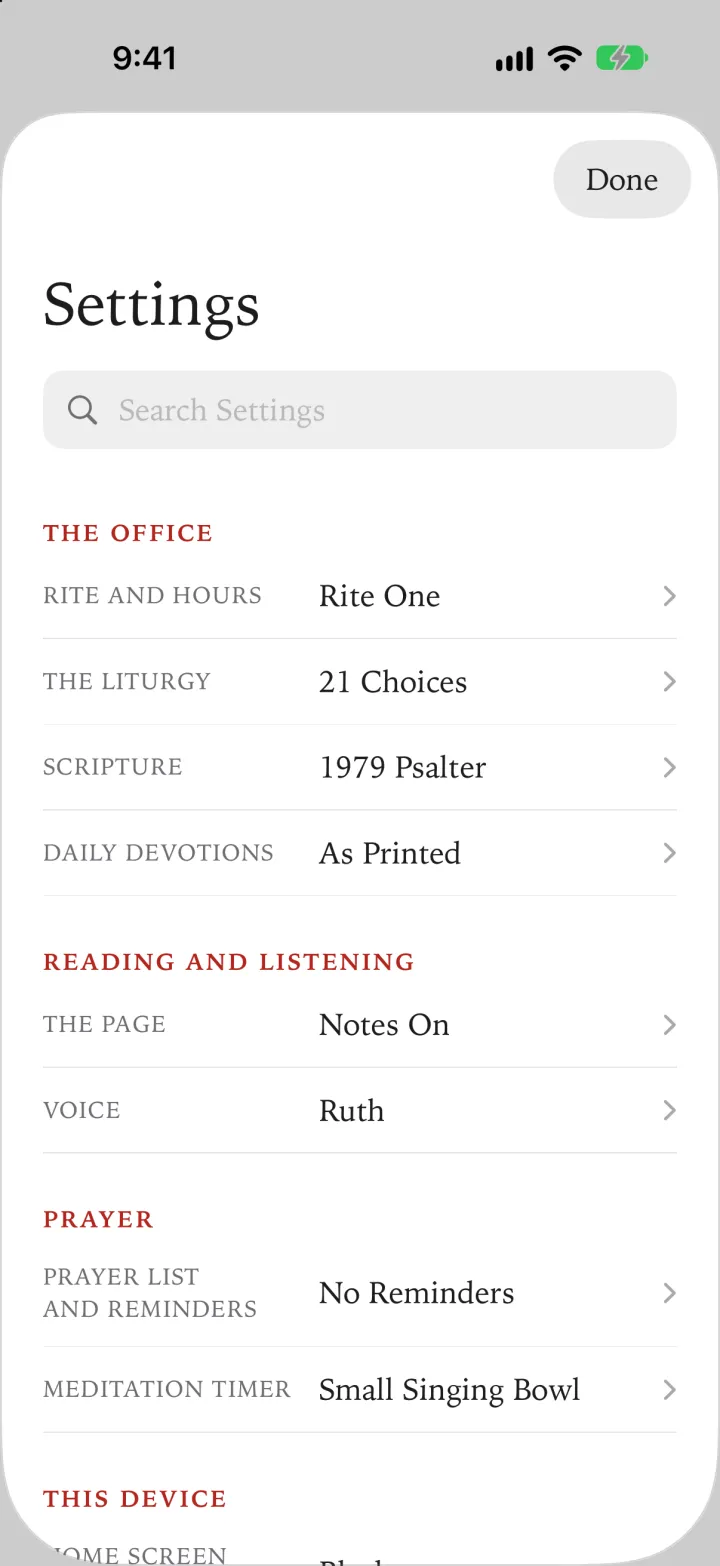
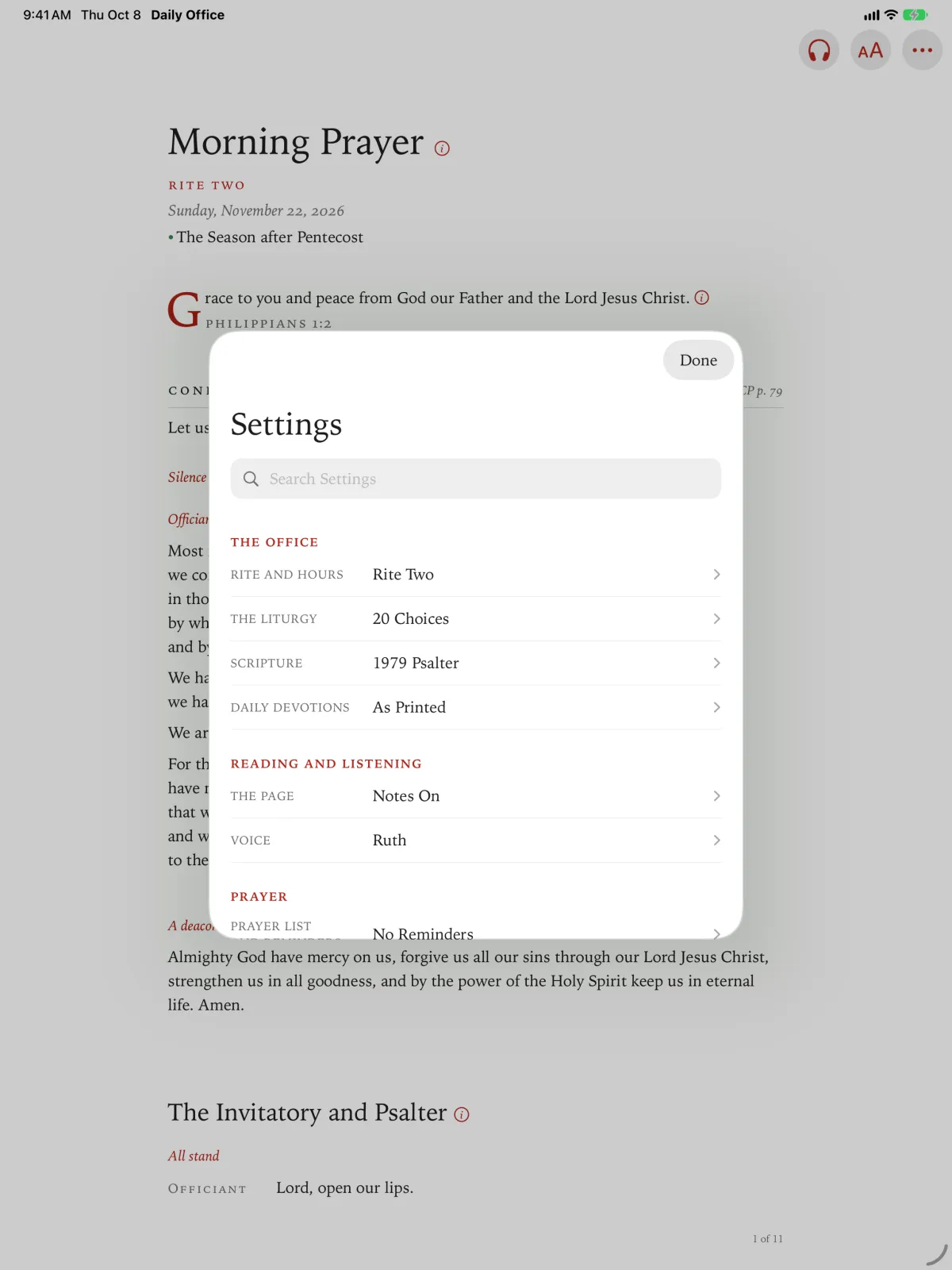
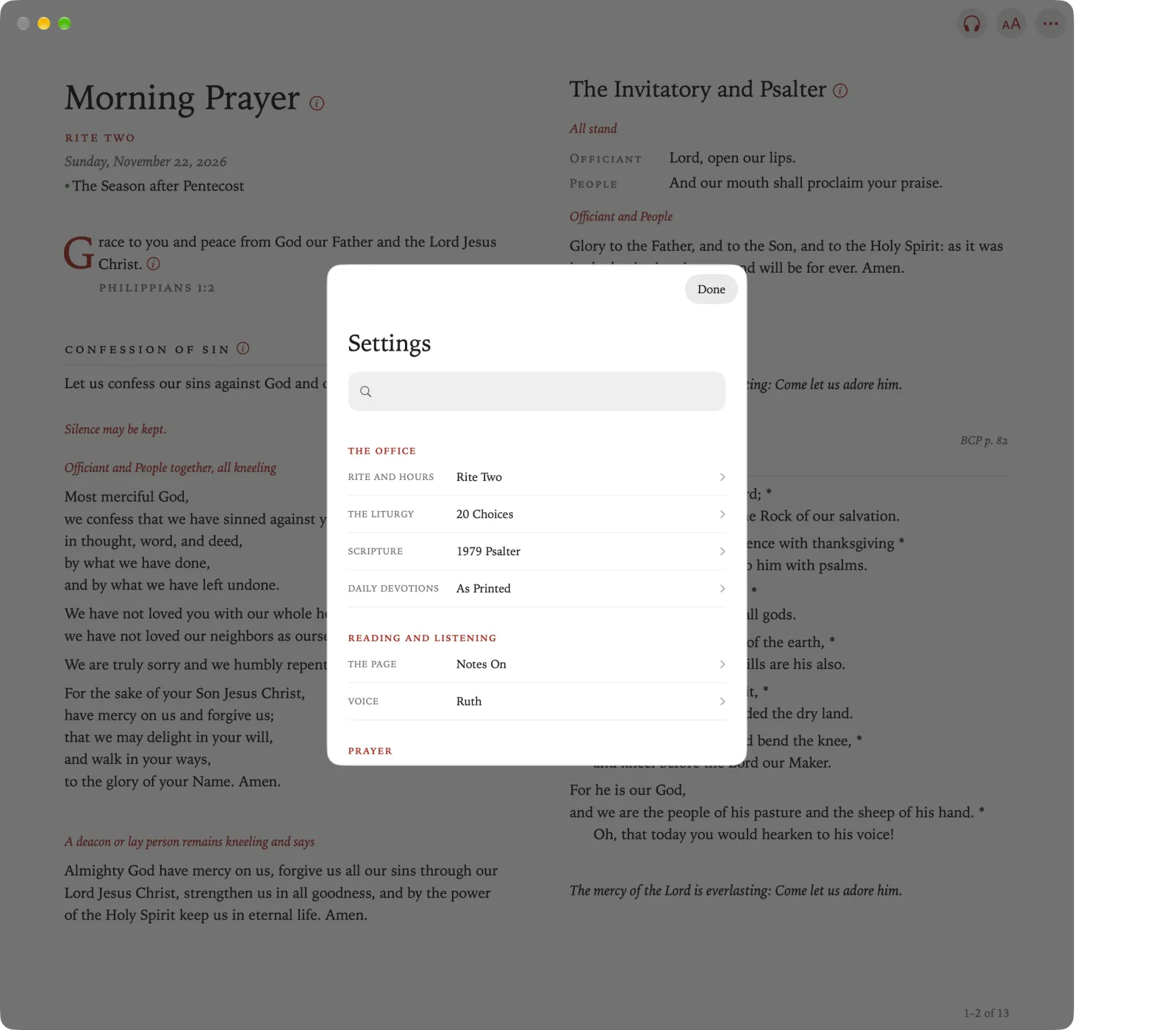
It holds Office and day, Opens On, Office Hours and Rite.
Press Back to show the sidebar, and then select Settings.
Opens On and Office Hours are under The Office, and Rite is under Language.
Choosing the rite
Rite One is the office in traditional language (pages 37–73). Rite Two is in contemporary language (pages 75–126). The psalms and readings are the same in both.
Tap Rite.
It changes to the other rite, and the office is set out in it.
Click Rite.
It changes to the other rite, and the office is set out in it.
Pinch Rite.
It changes to the other rite, and the office is set out in it.
Select Rite.
It changes to the other rite.
Choosing the hours
Office Hours sets the hour each office begins. Opens On goes by these hours when it opens the office for the time of day.
Tap Office Hours.
Its page lists the four offices, each with the hour it begins.
Click Office Hours.
Its page lists the four offices, each with the hour it begins.
Pinch Office Hours.
Its page lists the four offices, each with the hour it begins.
Tap an office, and then tap the hour you want.
Click an office, and then click the hour you want.
Pinch an office, and then pinch the hour you want.
Select Office Hours.
Select an office, and choose the hour you want.
Each office can begin only between the hours of the offices either side of it, so the four stay in order. Beside Office Hours, Standard becomes Your Own.