 Daily Office
Lesson 1 of 4 · About 2 minutes
Finding a Setting
Tap Overflow, and then tap Settings (or Settings in the toolbar, if you have moved it there).
Click Overflow, and then click Settings (or Settings in the toolbar, if you have moved it there).
Pinch Overflow, and then pinch Settings (or Settings in the toolbar, if you have moved it there).
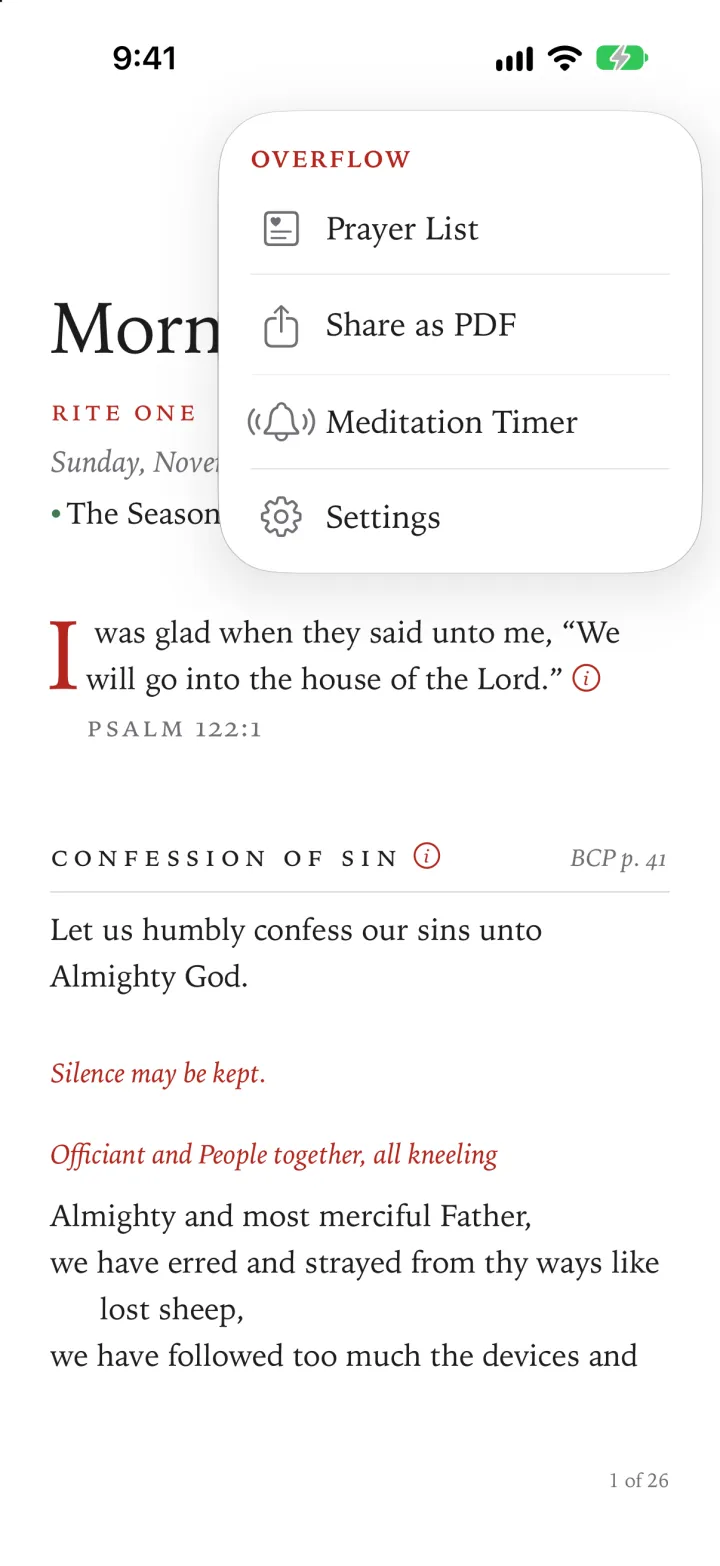
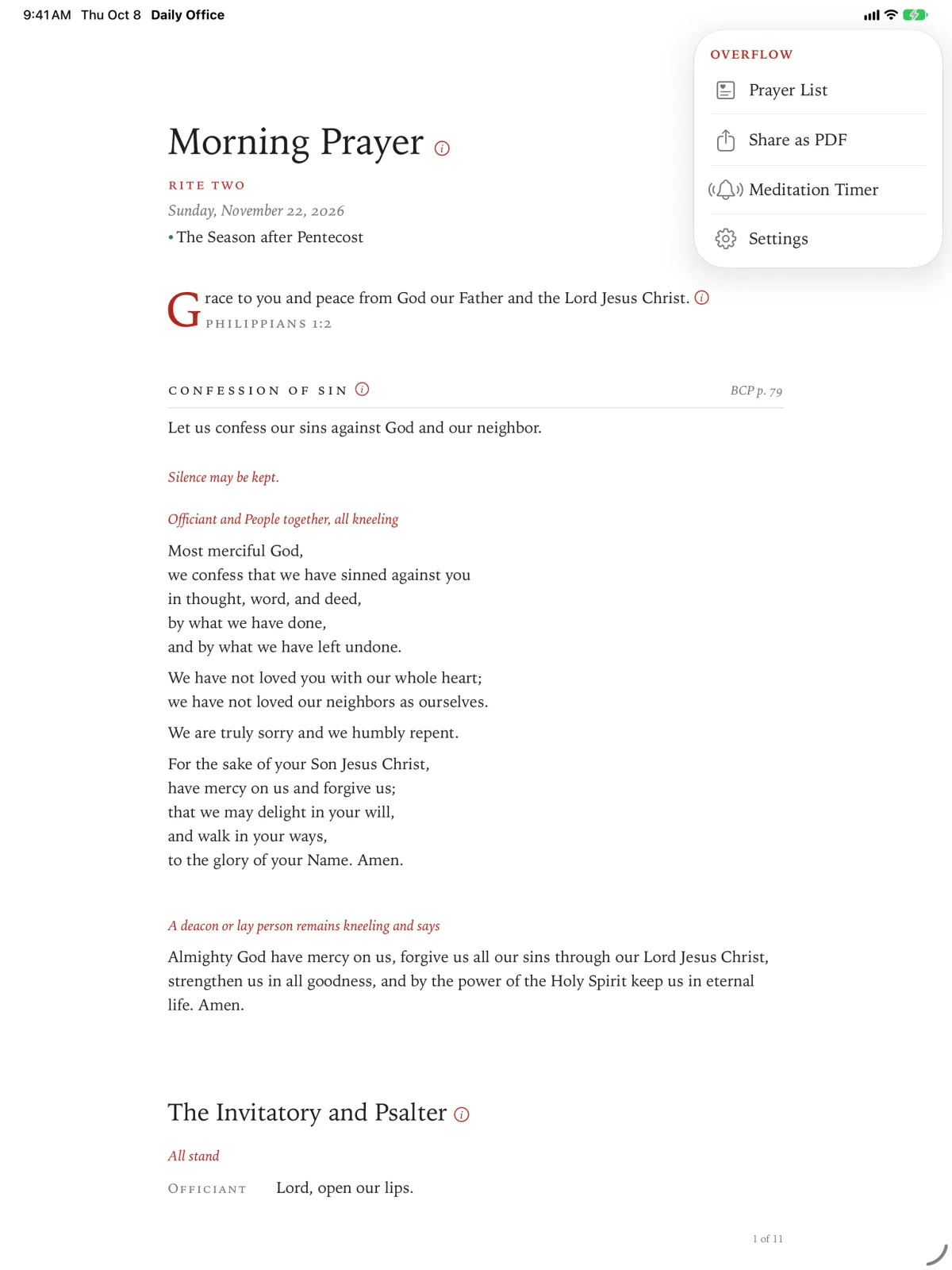
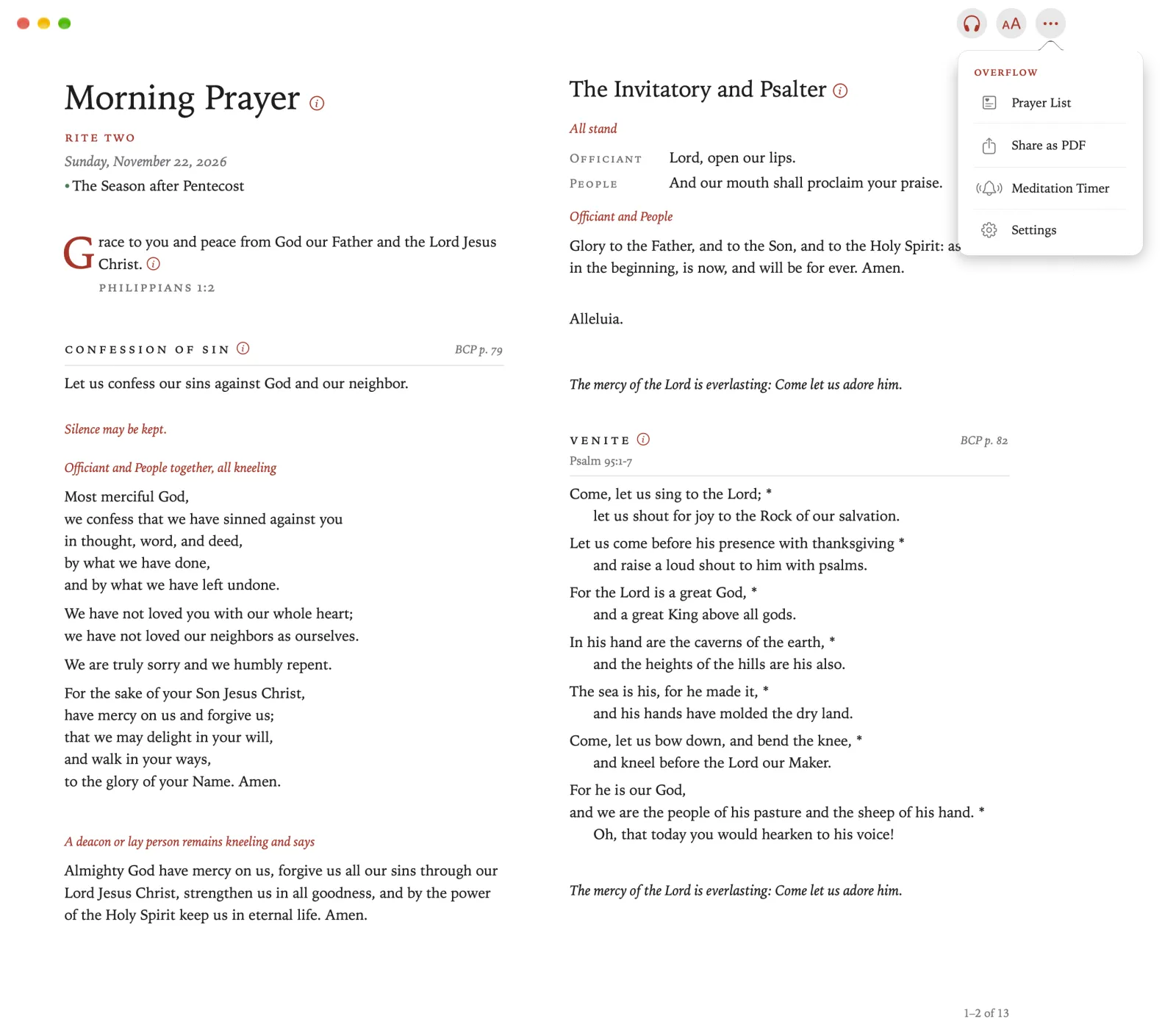
Settings opens. Its pages are listed under headings. The first four, under The Office, are the ones this chapter is about.
On Apple TV, Settings is one list, under headings, with a few settings that open a page of their own.
Press Back to show the sidebar, and then select Settings.
Swipe down to the setting you want, and select it.
Searching Settings
You don’t need to know which page a setting is on, or even its exact name. Search looks through every page, by a setting’s name and by other words for it.
Tap Search Settings, at the top of Settings.
Click Search Settings, at the top of Settings.
Pinch Search Settings, at the top of Settings.
Type “thee and thou”.
The settings it finds appear, each under its page. Rite is among them, with a line saying what else it is called.
Tap Rite.
Its page opens, with Rite lit for a moment.
Click Rite.
Its page opens, with Rite lit for a moment.
Pinch Rite.
Its page opens, with Rite lit for a moment.