 Daily Office
Lesson 2 of 3 · About 3 minutes
Opening Another Day
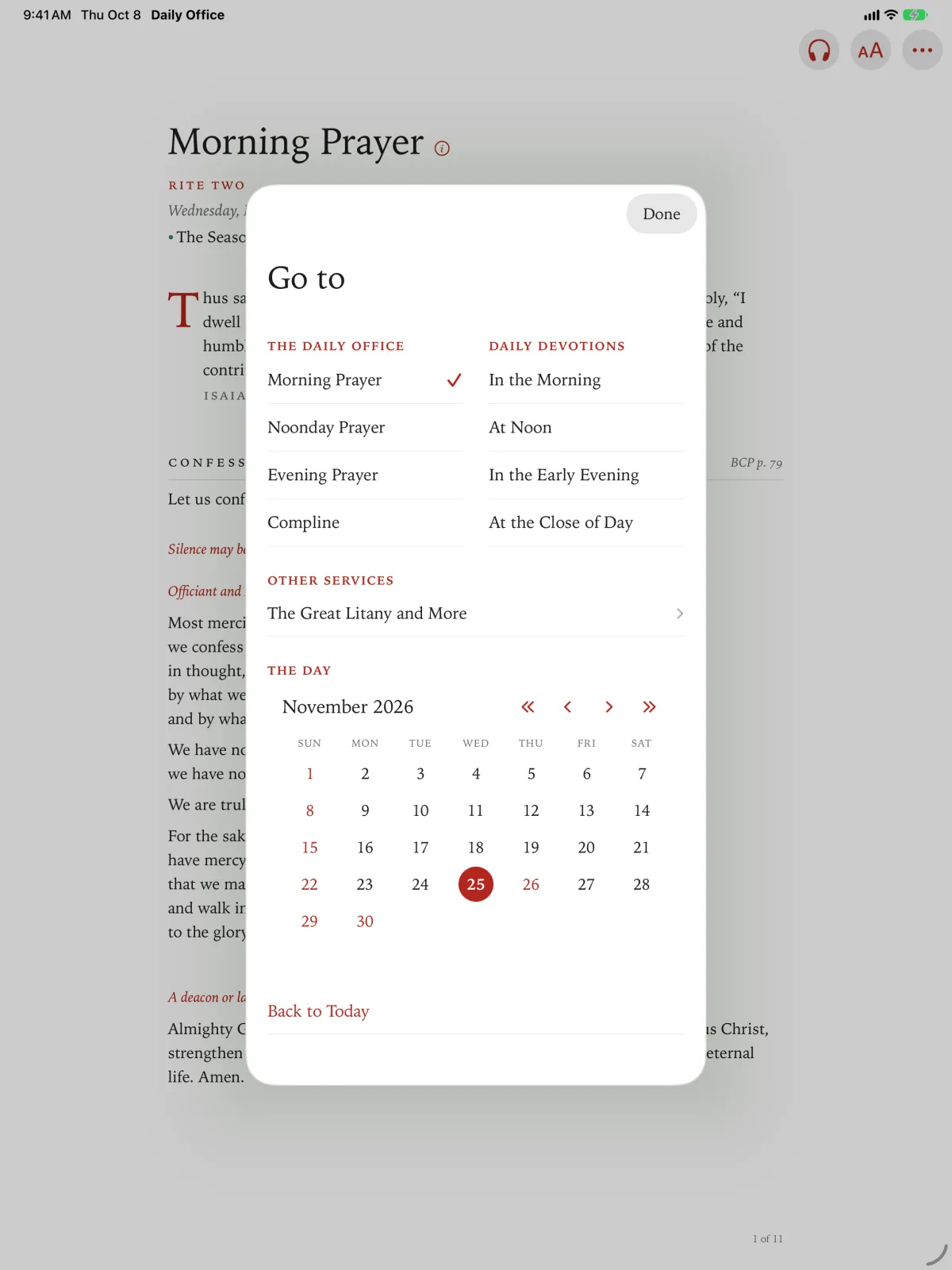
Go to lets you read the office for any day: last Sunday, next week’s feast, or a day years from now.
Go to lets you read the office for another day: last Sunday, or a day in the coming fortnight.
Tap the office’s title and date, at the top of its first page.
Go to opens.
Click the office’s title and date, at the top of its first page.
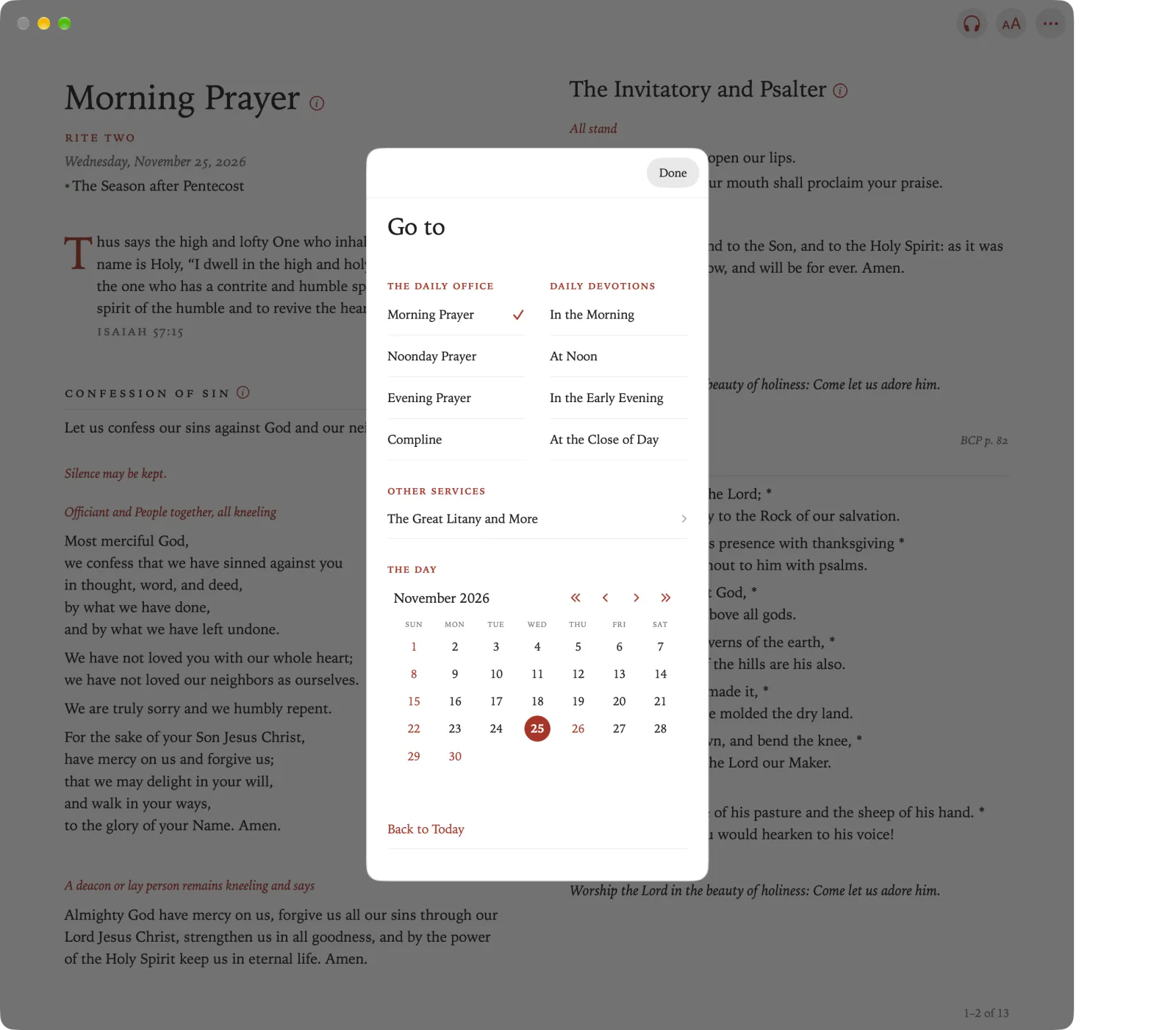
Go to opens.
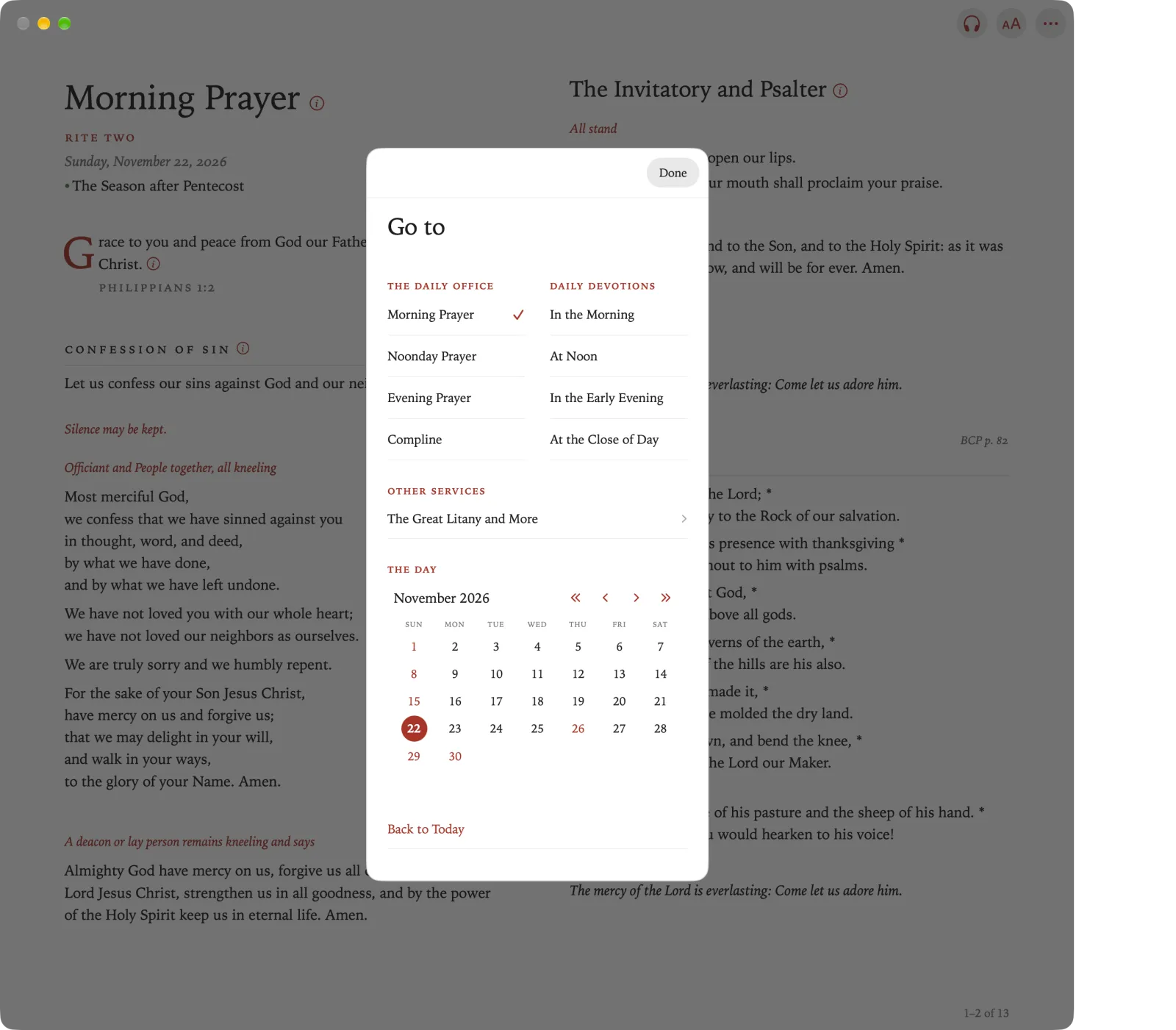
Scroll down to The Day. Under it is a calendar of the month.
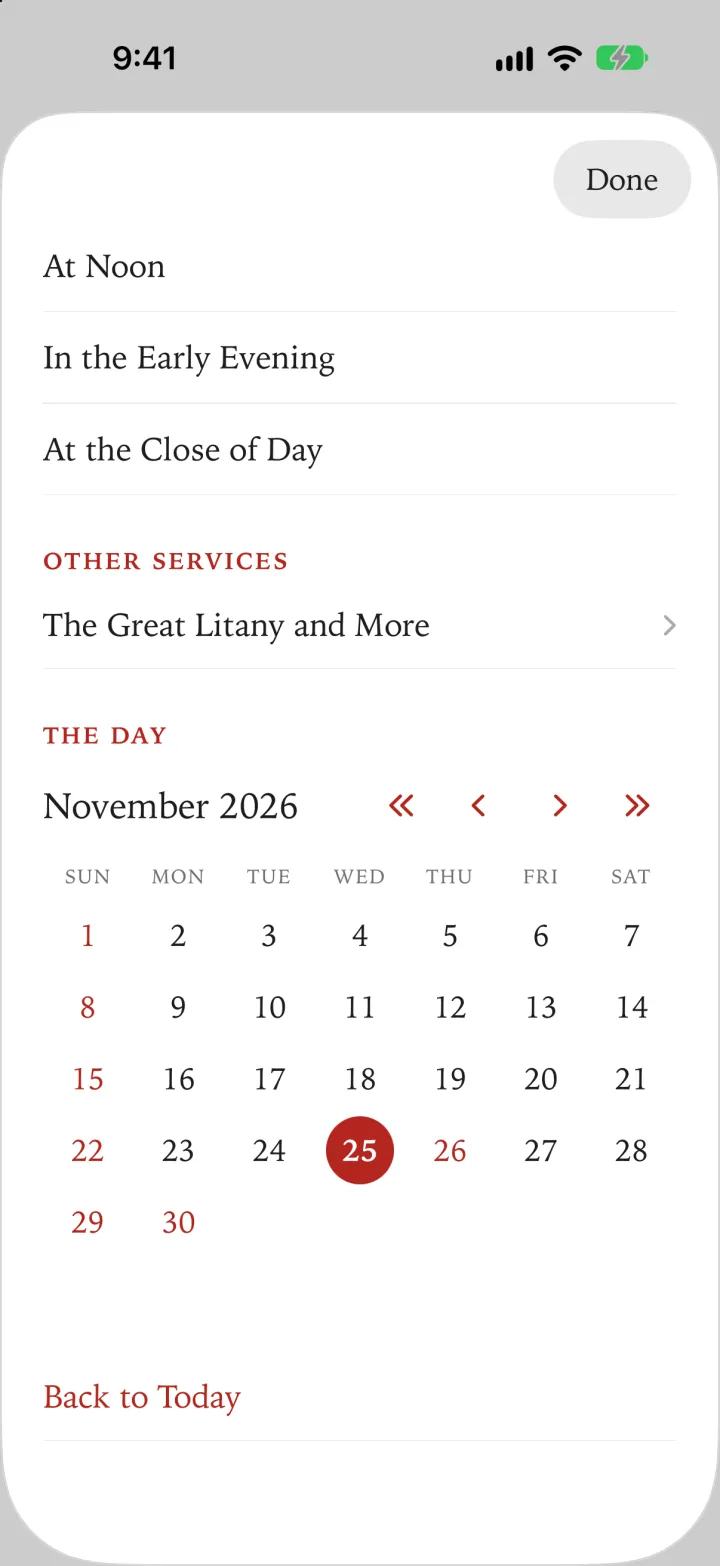
Sundays and the BCP’s greater days, such as Holy Days and the days of Holy Week, are in red. The day you are reading is circled, and today has a ring.
Tap a date.
Click a date.
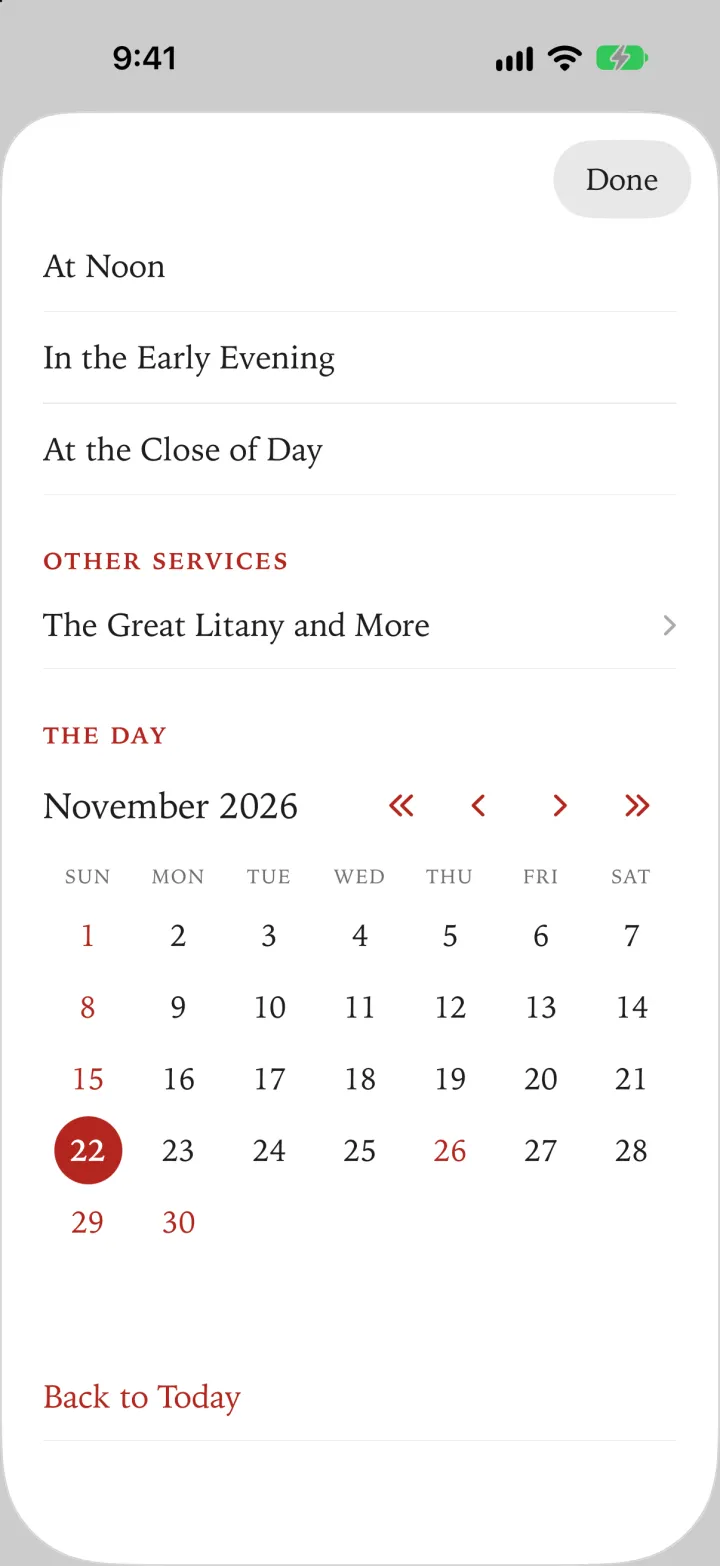
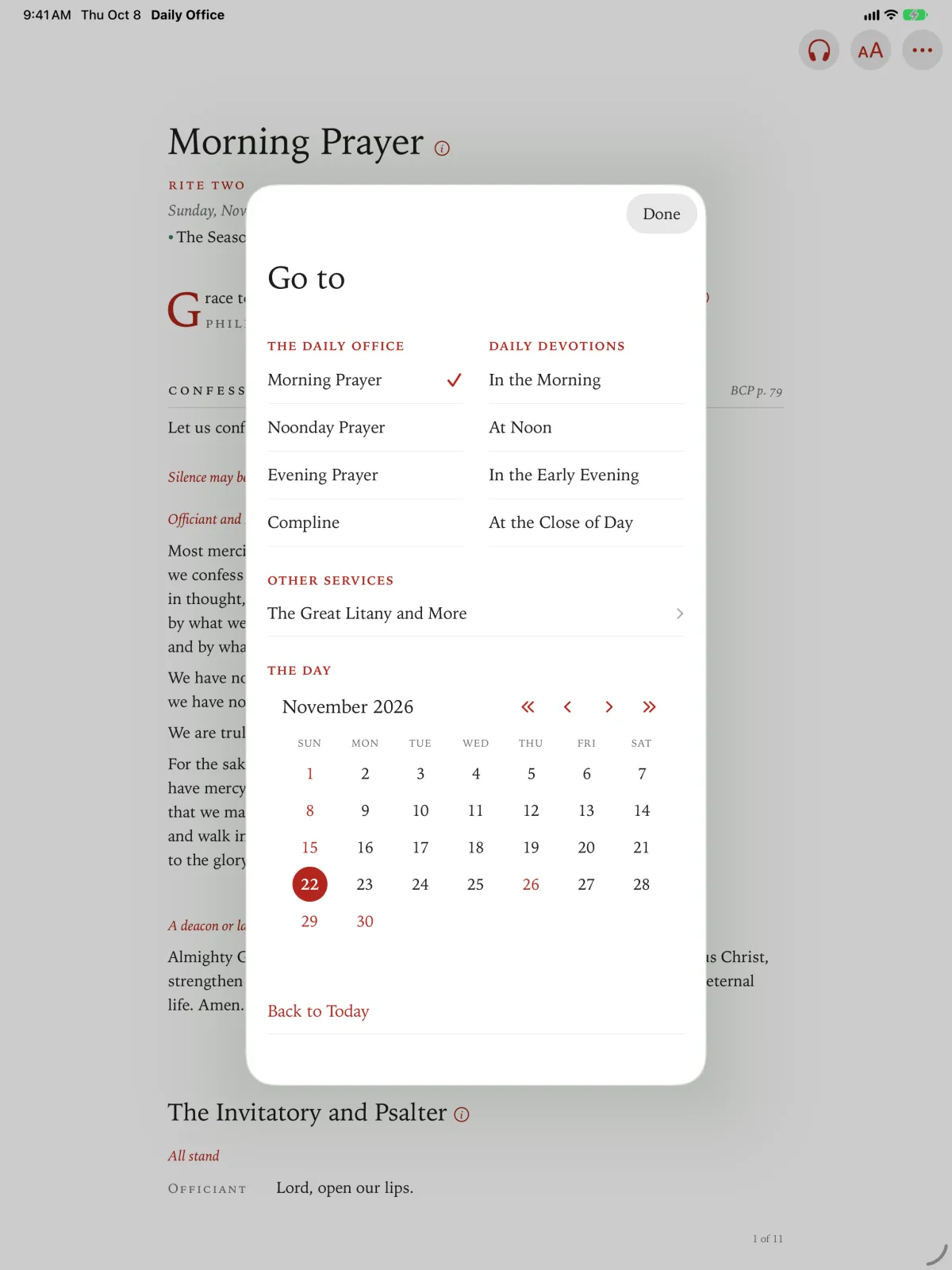
Tap Done. You are reading the office for that day.
Click Done. You are reading the office for that day.
Going back to today
Open Go to again.
Tap Back to Today, below the calendar, and then tap Done.
Click Back to Today, below the calendar, and then click Done.
Pinch Go to in the toolbar.
Go to opens.
Under The Day is a calendar of the month. Sundays and the BCP’s greater days, such as Holy Days and the days of Holy Week, are in red.
Pinch a date. The arrows above the calendar go to another month.
Pinch Done. You are reading the office for that day.
To come back to today, open Go to again, pinch Back to Today, at the foot of Go to, and then pinch Done.
Press Back to show the sidebar, and then select Go to.
Swipe right to the days under Day. They run from two weeks before today to two weeks after.
Select a day.
The office opens on it.
To come back to today, open Go to again, and select Today, near the foot of the list, above Done. It is there only when you are reading another day.