 Daily Office
Lesson 1 of 2 · About 2 minutes
Sharing the Office as a PDF
Share as PDF makes a PDF of the office you are reading. It is in Overflow (…), at the end of the toolbar, unless you have moved it into the bar.
1
Tap Overflow, and then tap Share as PDF.
Two choices appear.
1
Click Overflow, and then click Share as PDF.
Two choices appear.
1
Pinch Overflow, and then pinch Share as PDF.
Two choices appear.
2
Tap the page you want:
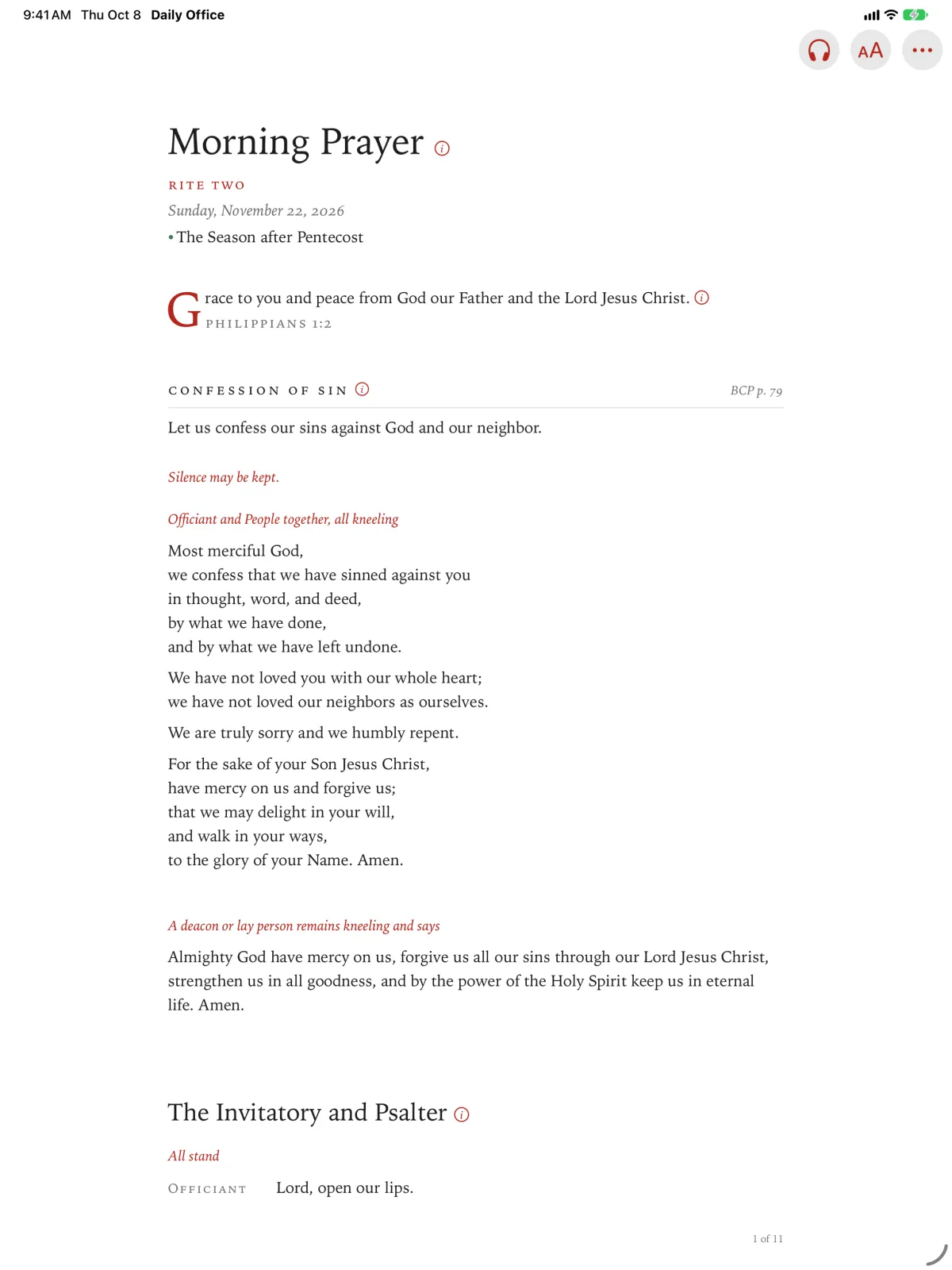
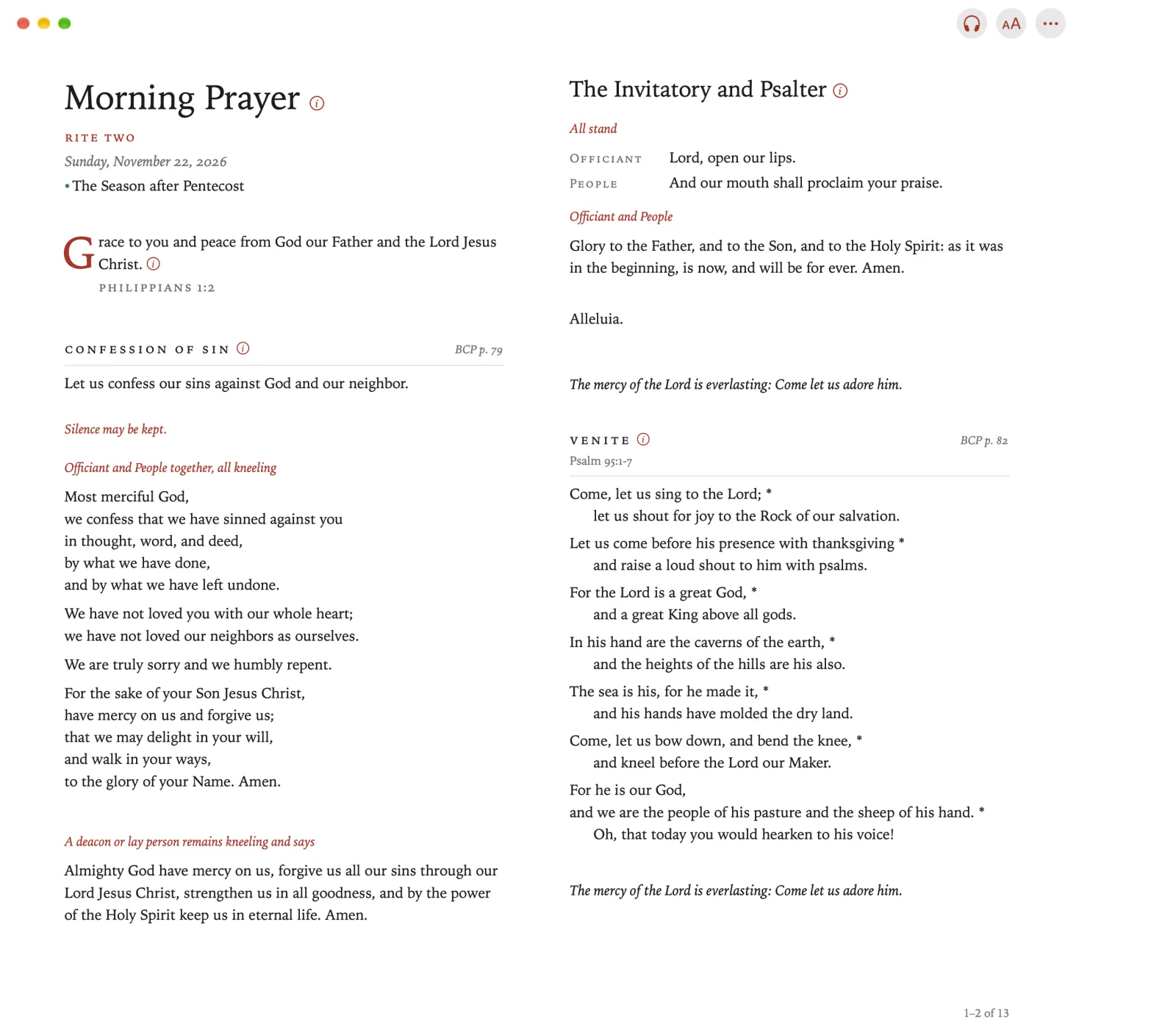
- For Printing sets the office on US Letter pages, to print for a service or a sheet in a pew.
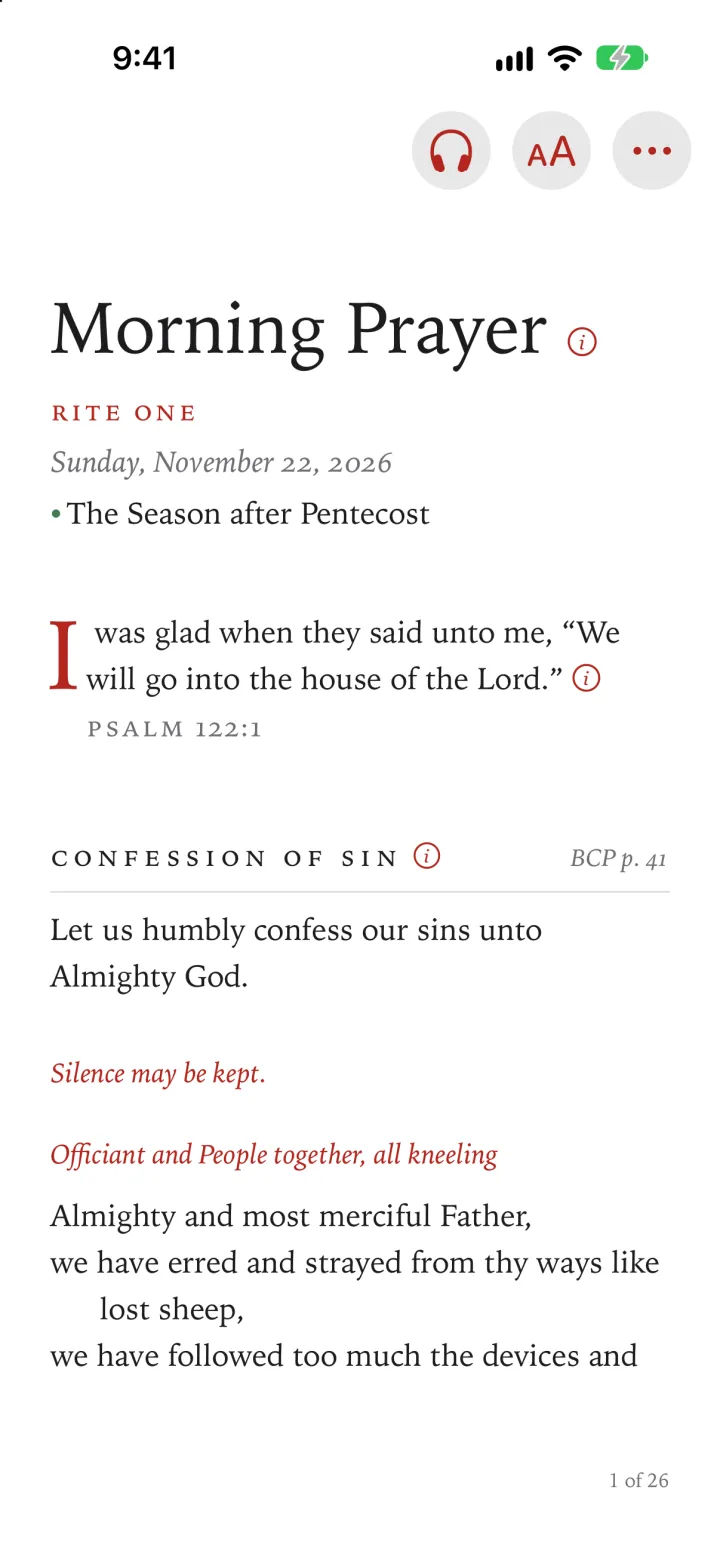
- For Phones sets it on pages the shape of a phone’s screen, to read without zooming. It opens on any phone, even one without Daily Office.
2
Click the page you want:
- For Printing sets the office on US Letter pages, to print for a service or a sheet in a pew.
- For Phones sets it on pages the shape of a phone’s screen, to read without zooming. It opens on any phone, even one without Daily Office.
2
Pinch the page you want:
- For Printing sets the office on US Letter pages, to print for a service or a sheet in a pew.
- For Phones sets it on pages the shape of a phone’s screen, to read without zooming. It opens on any phone, even one without Daily Office.
3
Print it, save it, or send it from the share sheet.
Apple TV cannot make a PDF. There is no Share as PDF there: the office is for reading on the screen. To print or send an office, use Daily Office on an iPhone, iPad, Mac or Apple Vision Pro.