 Daily Office
Lesson 3 of 4 · About 3 minutes
Themes, Light and Dark
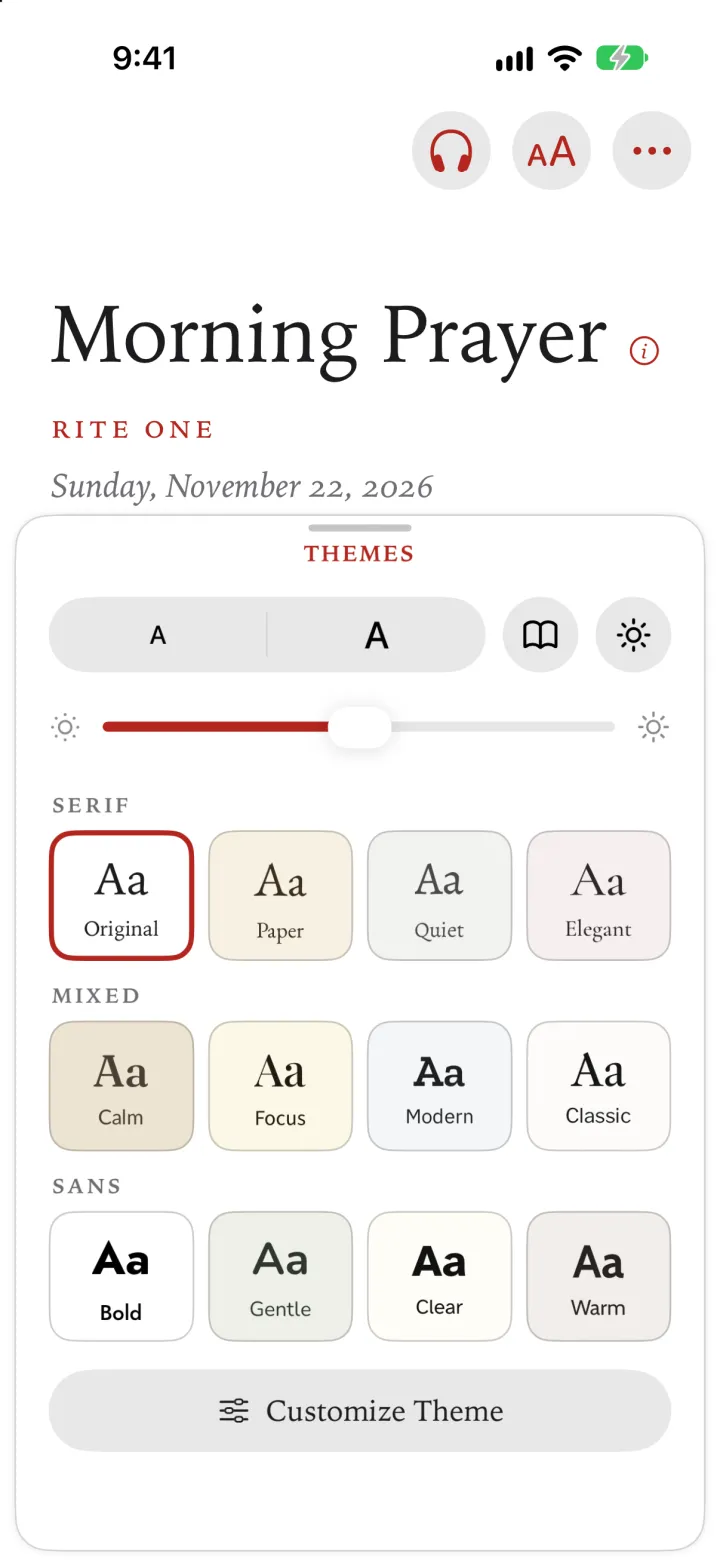
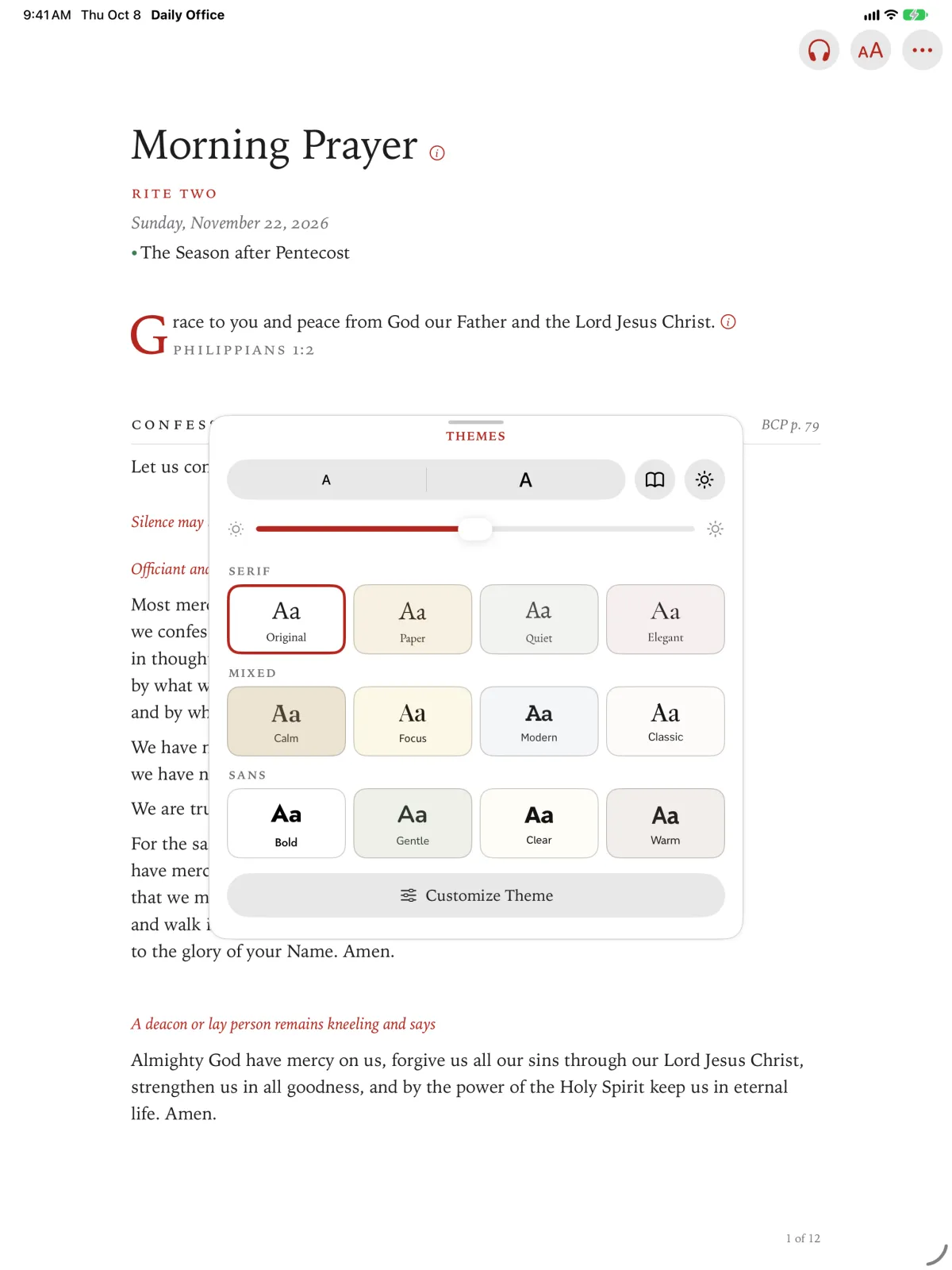
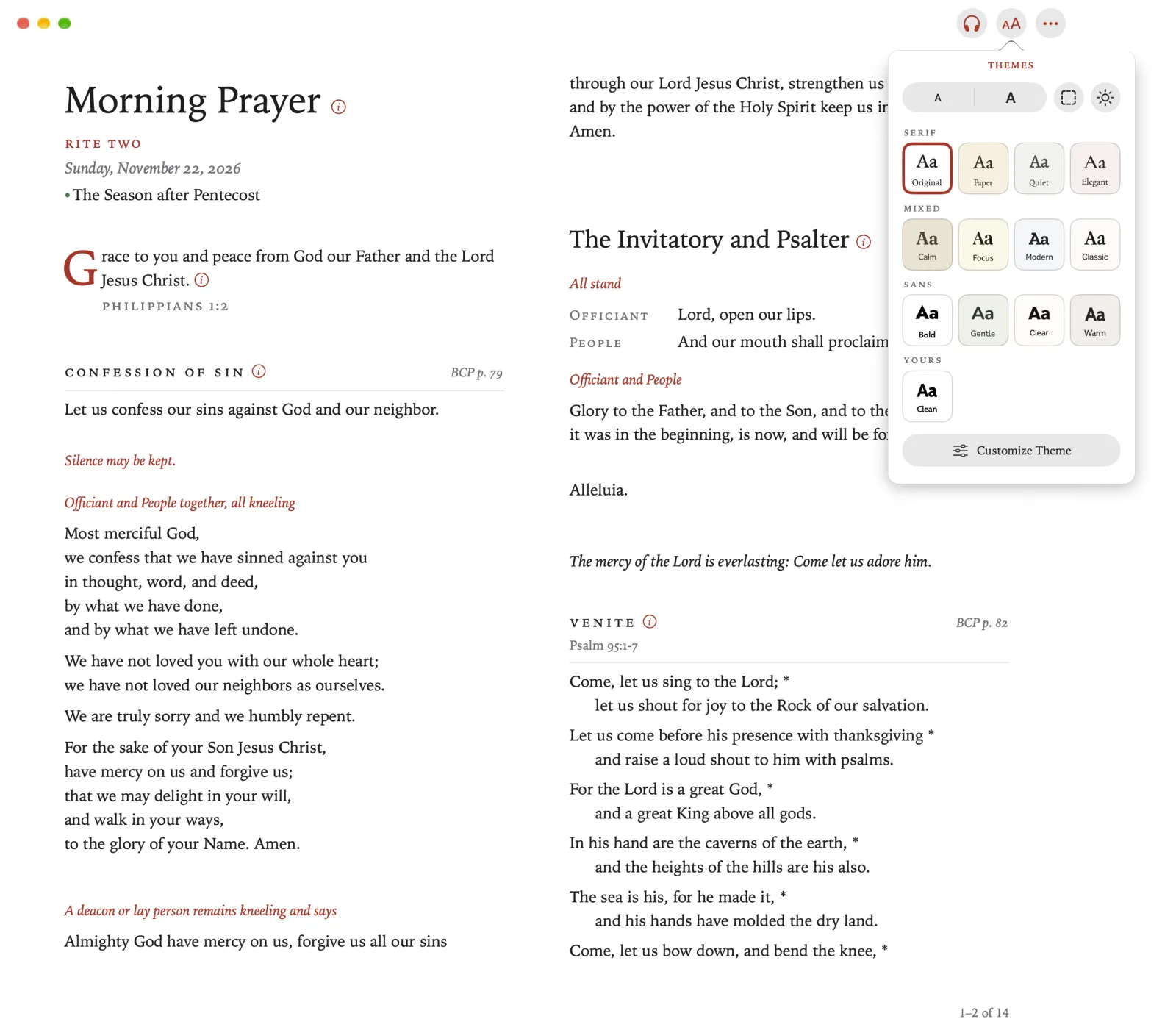
Each theme has its own typefaces and colors. There are twelve, in three groups: Serif, Mixed (serif headings over sans-serif text) and Sans.
Tap Themes (Aa).
Click Themes (Aa).
Pinch Themes (Aa).
Tap a theme.
The page changes behind the panel as you choose.
Click a theme.
The page changes behind the panel as you choose.
Pinch a theme.
The page changes behind the panel as you choose.
Tap Appearance, the last round button beside the two A’s, and choose Light, Dark or Match Device.
Match Device follows your iPhone.
Tap Appearance, the last round button beside the two A’s, and choose Light, Dark or Match Device.
Match Device follows your iPad.
Click Appearance, the last round button beside the two A’s, and choose Light, Dark or Match Device.
Match Device follows your Mac.
Pinch Appearance, the round button beside the two A’s, and choose Light, Dark or Match Device.
Match Device follows your Apple Vision Pro.
Press Back, and select Themes in the sidebar.
Select a theme.
Beside the list, a piece of the office shows how your page will look.
Under Appearance, select Light, Dark or Match Device.
Customize Theme
Tap Themes (Aa), and then tap Customize Theme, at the foot of the panel.
A card opens, with a preview of your page.
Click Themes (Aa), and then click Customize Theme, at the foot of the panel.
A card opens, with a preview of your page.
Pinch Themes (Aa), and then pinch Customize Theme, at the foot of the panel.
A card opens, with a preview of your page.
Choose a Font and a Size for the Headings and for the Body. Turn on Bold Text if you want it.
To change the spacing, turn on Customize, and set Line Spacing, Character Spacing, Word Spacing and Margins.
Tap ✓ to keep your changes, or ✕ to discard them.
Click ✓ to keep your changes, or ✕ to discard them.
Pinch ✓ to keep your changes, or ✕ to discard them.
In Themes, select Customize Theme.
Choose a Headings Font and a Body Font, and turn on Bold Text if you want it.
To change the spacing, turn on Customize, and set Line Spacing, Character Spacing, Word Spacing and Margins.
Select Done to keep your changes, or Cancel to discard them.