 Daily Office
Lesson 1 of 4 · About 2 minutes
Larger or Smaller Text
Themes, the Aa button in the toolbar, changes how the page looks. Each change shows on the page at once, with nothing to confirm.
Tap Themes (Aa).
The Themes panel opens over the page.
Click Themes (Aa).
The Themes panel opens over the page.
Pinch Themes (Aa).
The Themes panel opens over the page.
Tap the larger A to make the text a step larger. The smaller A makes it a step smaller again.
The page changes behind the panel.
Click the larger A to make the text a step larger. The smaller A makes it a step smaller again.
The page changes behind the panel.
Pinch the larger A to make the text a step larger. The smaller A makes it a step smaller again.
The page changes behind the panel.
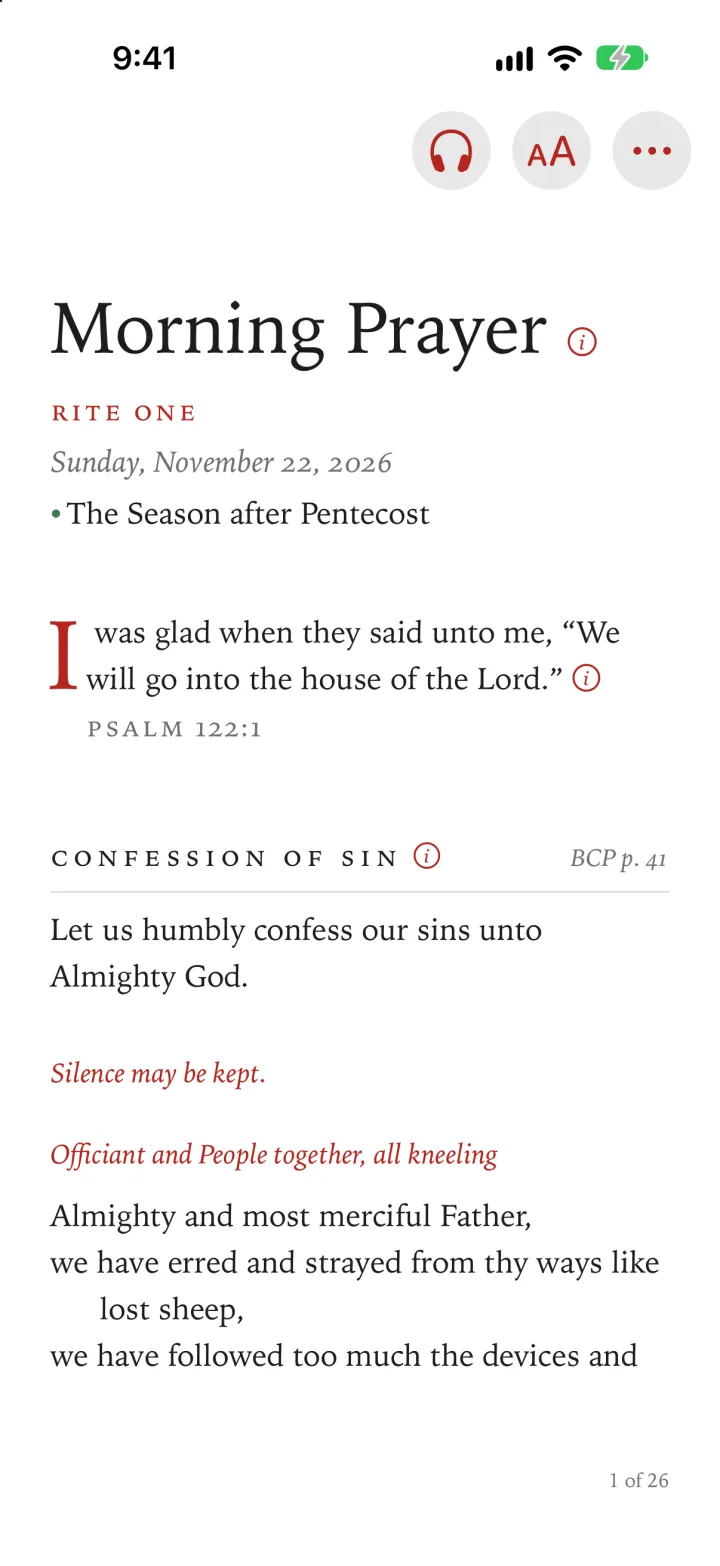
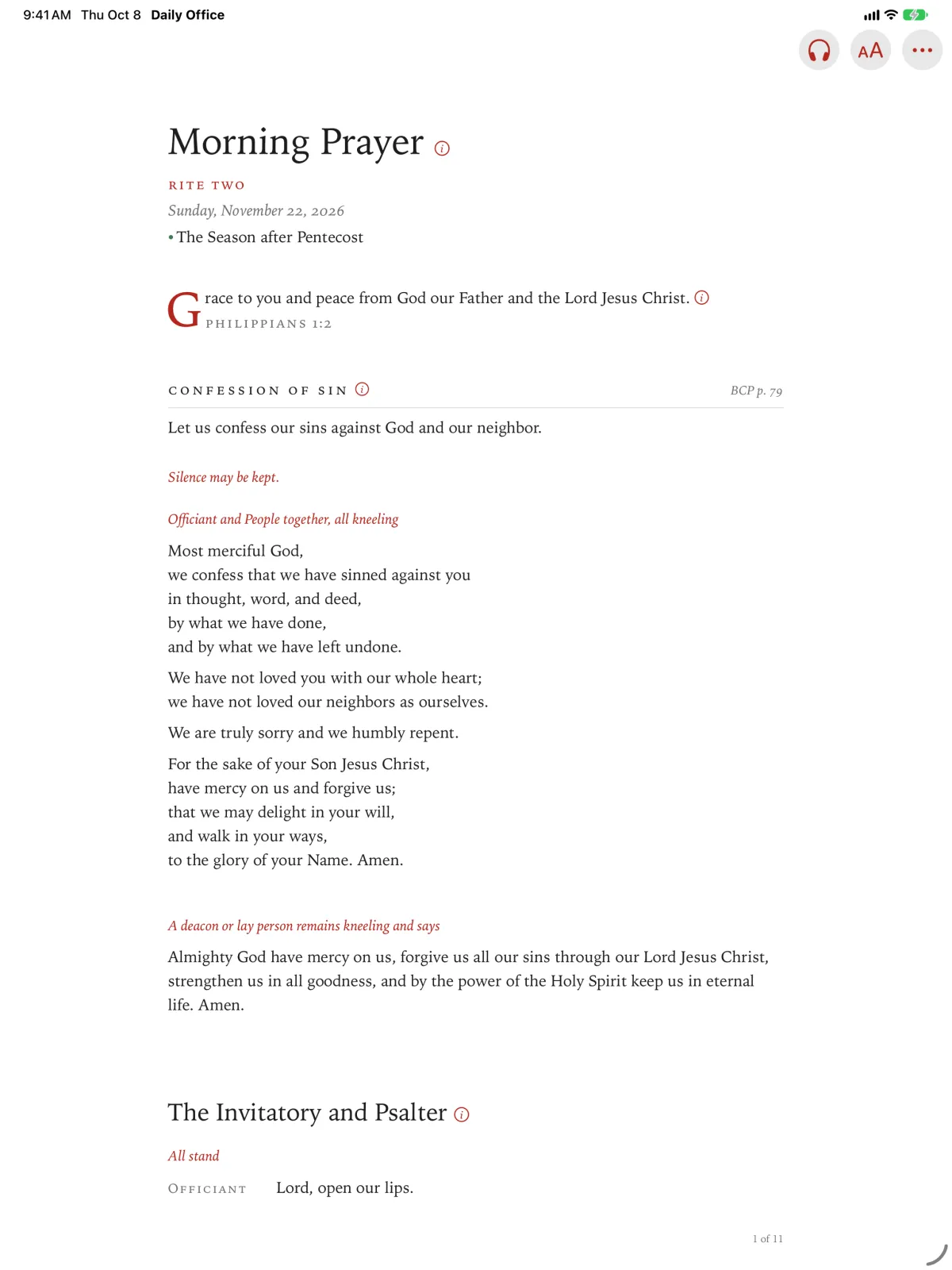
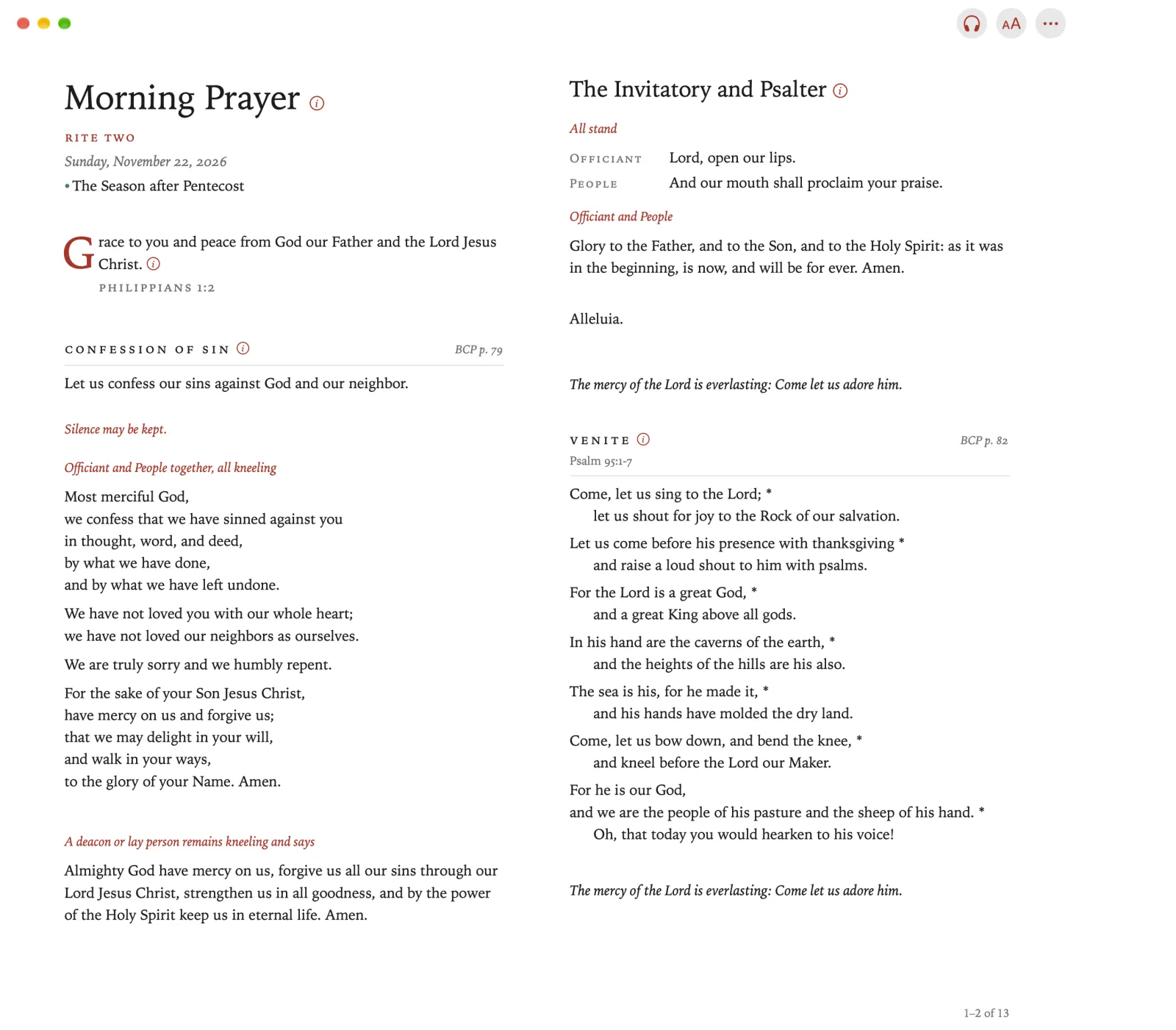
Swipe the panel down to close it.
To close the panel, click the page outside it, or press the Escape key.
To close the panel, pinch the ✕ at its top right.
Press Back to show the sidebar, and then select Themes.
Under Text Size, select Larger or Smaller.
Beside the list, a piece of the office shows how your page will look.